
Add JSON-LD schema to Shopify
Help Google show your price, stock and star ratings, and give AI assistants the right facts about every product.
- No app and no theme code
- One
FullSchemametafield, 3 minutes to set up - Then paste and save on each product
- Collections, pages and the home page too
Your page
HoverTap a detail to trace it
Northpeak
Trail Runner GTX
4.8 (214 reviews)
Reviews
★★★★★ “Dry feet after a full day of rain.”
Shipping & returns
Free shipping · 30-day returns
FullSchema reads it and writes the schema search engines and AI read.
northpeak.com › products › trail-runner-gtx
Trail Runner GTX
4.8 (214)·$129.00·In stock
Free delivery · 30-day returns
Waterproof trail shoes under $150?
The Trail Runner GTX from Northpeak is $129.00, rated 4.8 from 214 reviews, and in stock with free shipping.
northpeak.com<!-- pasted into the product's FullSchema field --><script type="application/ld+json">{"@context": "https://schema.org","@graph": [{"@type": "Product","@id": "https://northpeak.com/products/trail-runner-gtx#product","name": "Trail Runner GTX","description": "Waterproof trail shoe with a 6 mm drop and a rock plate.","sku": "NP-TR-GTX-SLT","gtin13": "0840112203457","image": ["https://northpeak.com/cdn/trail-runner-gtx.jpg"],"color": "Slate","brand": { "@type": "Brand", "name": "Northpeak" },"aggregateRating": {"@type": "AggregateRating","ratingValue": "4.8","reviewCount": "214"},"review": [{"@type": "Review","author": { "@type": "Person", "name": "Maya L." },"reviewRating": { "@type": "Rating", "ratingValue": "5" },"reviewBody": "Dry feet after a full day of rain."}],"offers": {"@type": "Offer","url": "https://northpeak.com/products/trail-runner-gtx","price": "129.00","priceCurrency": "USD","availability": "https://schema.org/InStock","itemCondition": "https://schema.org/NewCondition","seller": { "@id": "https://northpeak.com/#org" },"shippingDetails": {"@type": "OfferShippingDetails","shippingRate": {"@type": "MonetaryAmount","value": 0,"currency": "USD"},"shippingDestination": {"@type": "DefinedRegion","addressCountry": "US"},"deliveryTime": {"@type": "ShippingDeliveryTime","handlingTime": {"@type": "QuantitativeValue","minValue": 0,"maxValue": 1,"unitCode": "DAY"},"transitTime": {"@type": "QuantitativeValue","minValue": 2,"maxValue": 5,"unitCode": "DAY"}}},"hasMerchantReturnPolicy": {"@type": "MerchantReturnPolicy","applicableCountry": "US","returnPolicyCategory": "https://schema.org/MerchantReturnFiniteReturnWindow","merchantReturnDays": 30,"returnMethod": "https://schema.org/ReturnByMail","returnFees": "https://schema.org/FreeReturn"}}},{"@type": "Organization","@id": "https://northpeak.com/#org","name": "Northpeak","url": "https://northpeak.com/","logo": "https://northpeak.com/cdn/logo.png","sameAs": ["https://www.instagram.com/northpeak"]},{"@type": "WebPage","@id": "https://northpeak.com/products/trail-runner-gtx#webpage","url": "https://northpeak.com/products/trail-runner-gtx","name": "Trail Runner GTX | Northpeak","breadcrumb": {"@id": "https://northpeak.com/products/trail-runner-gtx#breadcrumb"},"mainEntity": {"@id": "https://northpeak.com/products/trail-runner-gtx#product"}},{"@type": "BreadcrumbList","@id": "https://northpeak.com/products/trail-runner-gtx#breadcrumb","itemListElement": [{"@type": "ListItem","position": 1,"name": "Home","item": "https://northpeak.com/"},{"@type": "ListItem","position": 2,"name": "Trail running","item": "https://northpeak.com/collections/trail"},{"@type": "ListItem","position": 3,"name": "Trail Runner GTX"}]}]}</script>Short answer
To add JSON-LD schema to Shopify without an app, create a multi-line text metafield for products (custom.fullschema) and add one Custom Liquid line to the product template that outputs it. Then paste each product's JSON-LD into that field and save. The setup takes about three minutes, once.
- App required
- No
- One-time setup
- ~3 minutes
- Each product after that
- Paste and save
Updated
How to add it
One-time setup
About three minutes, and you only do it once. After this, everything happens on the product's own page.
- 1
Create a FullSchema field for products
This adds an empty box to every product. Each product's schema will go in it.
- 1In your Shopify admin, open Settings, then Metafields and metaobjects.
- 2Click Products, then Add definition.
- 3Type
FullSchemaas the name. Shopify fills in the key ascustom.fullschemaon its own. - 4Under Type, choose Multi-line text.
- 5Click Save.
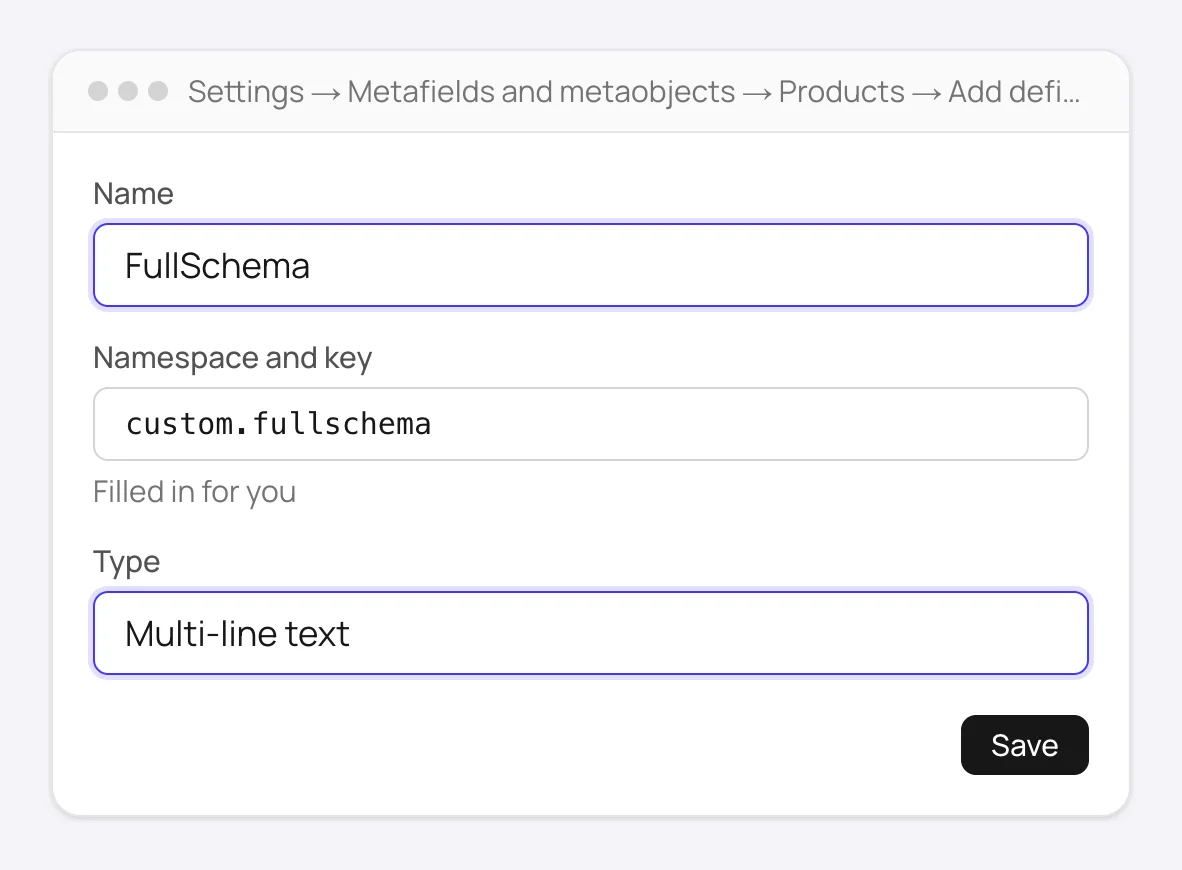
Settings → Metafields and metaobjects → Products: the FullSchema field, created once for the whole store. - 1
- 2
Show the field on your product pages
One line in the theme editor tells your product pages to include whatever is in that box.
- 1Go to Online Store → Themes and click Customize.
- 2In the menu at the top (it says Home page), choose Products → Default product.
- 3In the left panel, under Template, click Add section and pick Custom Liquid.
- 4Paste this line into the Liquid code box:
{{ product.metafields.custom.fullschema.value }} - 5Set Top padding and Bottom padding to
0. The section shows nothing on the page, so this keeps it from adding empty space. - 6Click Save.
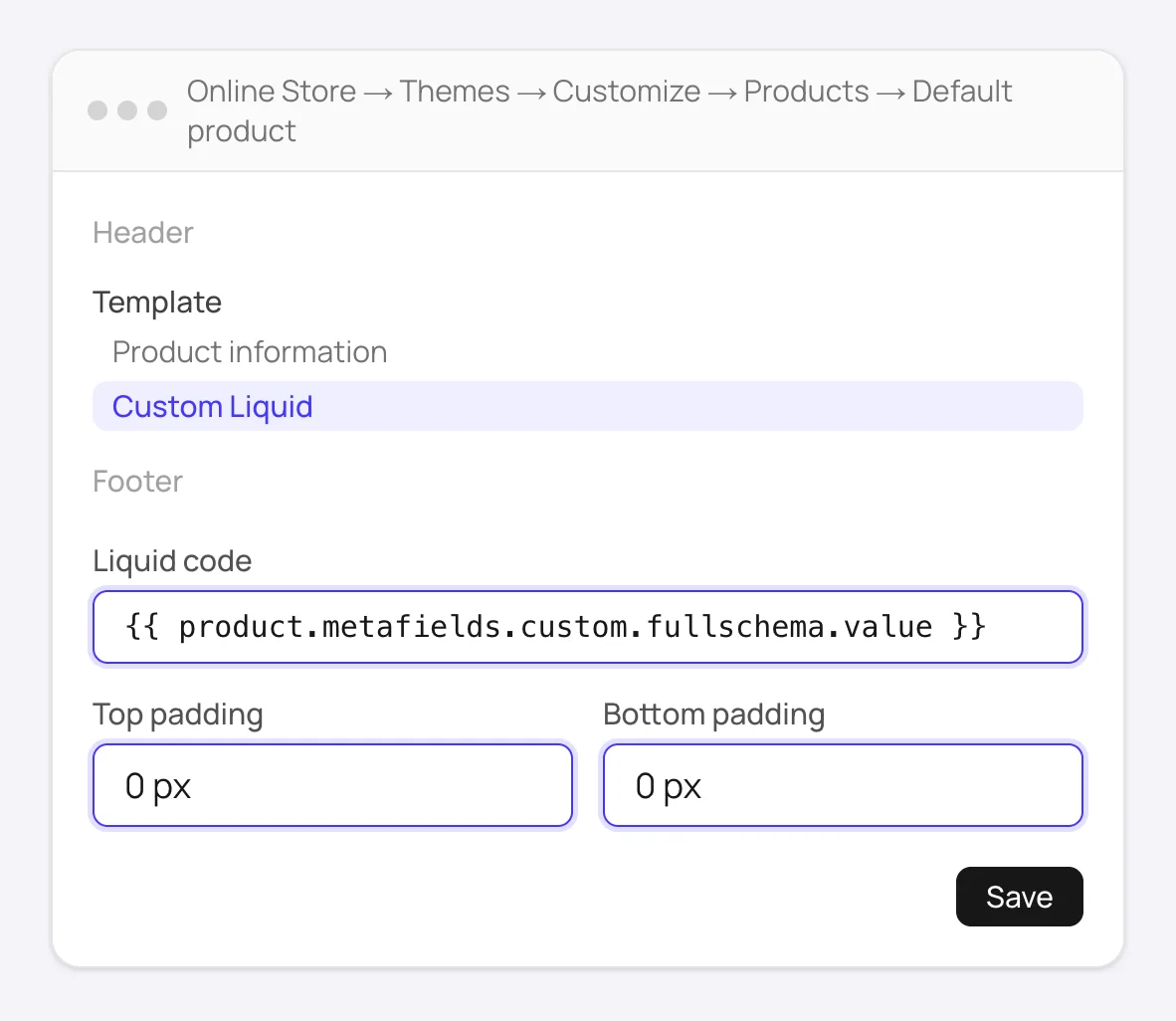
One Custom Liquid line on the product template prints each product's own JSON-LD. - 1
For each product
A few seconds each. This is all you do from now on.
- 3
Generate the schema
Takes a few seconds per product.
- 1Open the product on your live store and copy its address from the browser bar.
- 2Paste it into FullSchema and click Generate schema.
- 3On the result, keep HTML selected and click Copy. The code starts with
<script type="application/ld+json">.
- 1
- 4
Paste it on the product
From now on, this is the only place you paste.
- 1Open Products and click the product.
- 2Scroll to the bottom of the page. Under Metafields, click the FullSchema field.
- 3Paste the code and click Save.
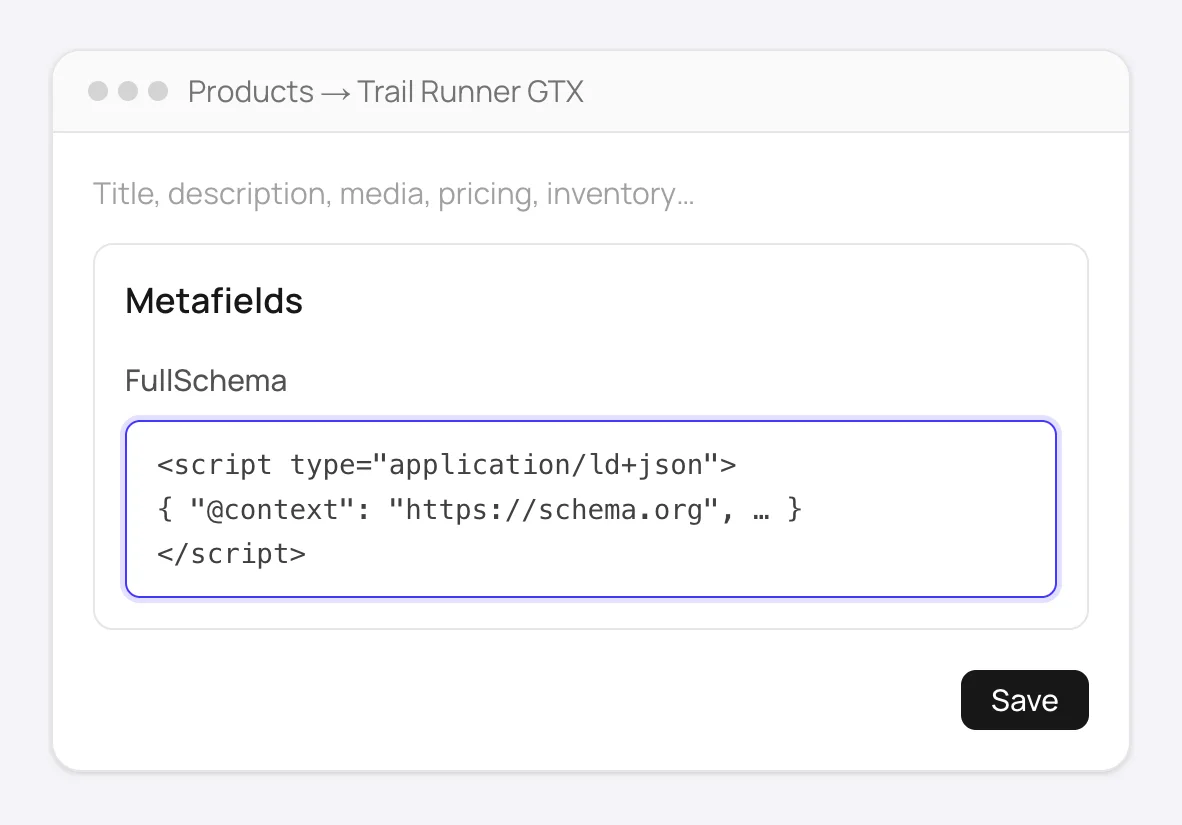
For each product: paste its JSON-LD into the FullSchema field at the bottom and save. - 1
- Step 5
Check it's live
One click, and it's free.
- 1Back in FullSchema, click Check it's live under the result.
- 2When it says It's live, you're done.
- 3Prefer to look yourself? Open the product page, right-click and choose View Page Source, then search for
application/ld+json.
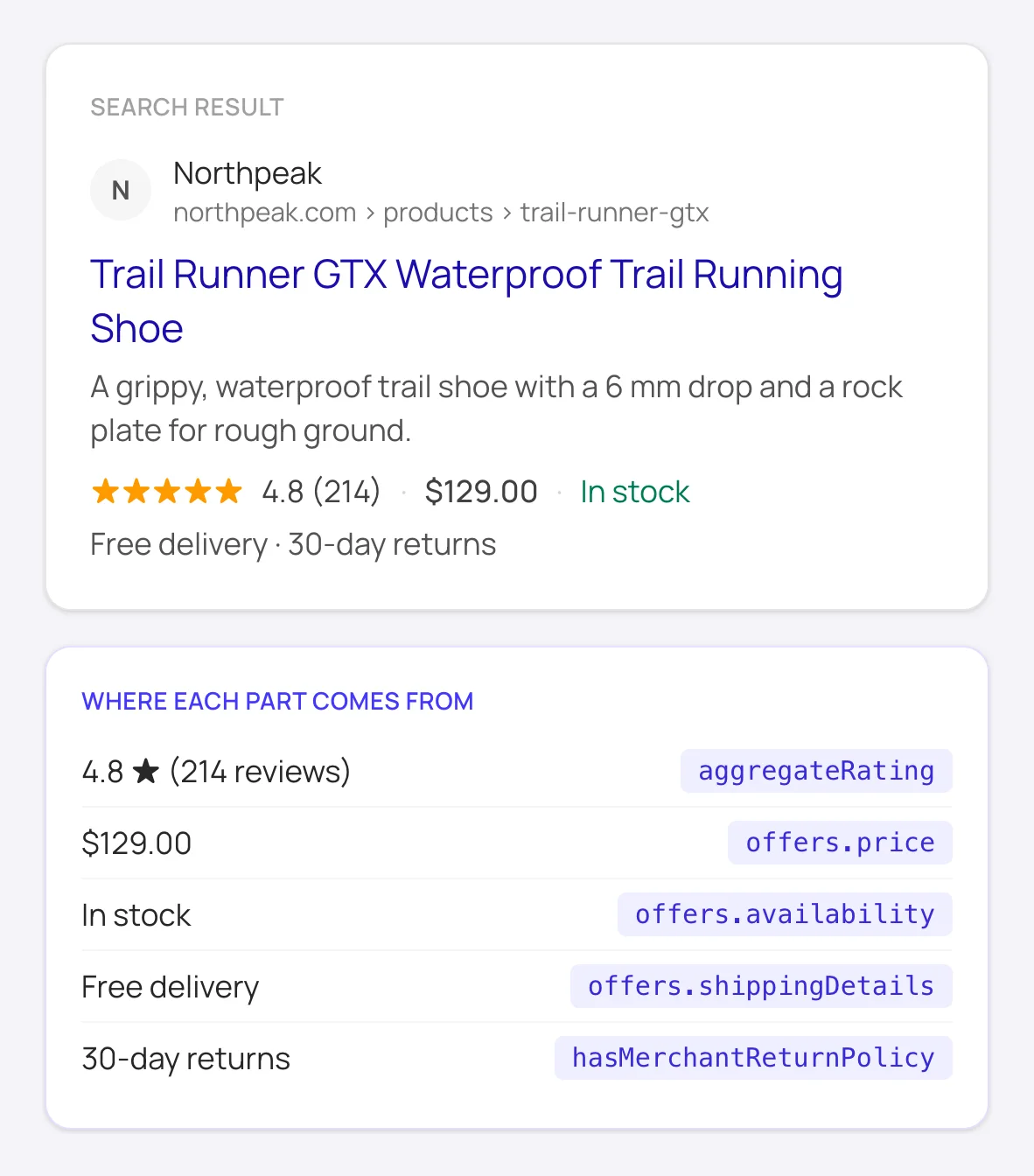
What a complete Product block makes a page eligible for. The search engine decides when to show it. That's it. Search engines and AI tools can now read this product's full details.
- 1
Home page, collections and other pages
The setup above covers products. Each of these takes one more short setup, done the same way. Skip the ones you don't need.
- 6
Home page
There's only one home page, so it doesn't need a field. The code goes straight into a section.
- 1Generate the schema for your store's home page address, keep HTML selected and click Copy.
- 2Go to Online Store → Themes and click Customize. The editor opens on the Home page.
- 3In the left panel, under Template, click Add section and pick Custom Liquid.
- 4Paste the code into the Liquid code box as is.
- 5Set Top padding and Bottom padding to
0, then click Save.
- 1
- 7
Collections
The same as products: a field and a line once, then a paste for each collection.
- 1In Settings → Metafields and metaobjects, click Collections, then Add definition. Name it
FullSchema, choose Multi-line text and click Save. - 2In the theme editor, choose Collections → Default collection from the menu at the top.
- 3Under Template, add a Custom Liquid section, paste this line, set both paddings to
0and click Save:{{ collection.metafields.custom.fullschema.value }} - 4For each collection: open it under Products → Collections, paste its code into the FullSchema field at the bottom and save.
- 1
- 8
Pages and blog posts
Pages like About or Contact, and blog posts, work just like collections.
- 1Add a
FullSchemadefinition under Pages, and one under Blog posts if you need it, the same way as for collections. - 2In the theme editor, open Pages → Default page and add a Custom Liquid section with this line:
{{ page.metafields.custom.fullschema.value }} - 3For posts, open Blog posts → Default blog post and use this line instead:
{{ article.metafields.custom.fullschema.value }} - 4Open each page or post in your admin, paste its code into the FullSchema field at the bottom and save.
- 1
Good to know
Paste the code exactly as Copy gives it with HTML selected, starting with <script type="application/ld+json">. If only the JSON part goes into the field, it shows up as text on the page.
Some products or collections use a different template? Open that template in the theme editor and add the same Custom Liquid line there too. It's one line per template, not per item.
Why a field, and not the code straight in the section? A section belongs to a template, so it shows on every page that uses it. The field keeps each product, collection or page to its own code. Only the home page, which is a single page, gets the code in the section itself.
Changed a price, a collection or the home page? Generate again and paste the new code over the old one, in the same field or section.
How to add schema to Shopify manually
Without FullSchema: what the same result takes by hand.
You can extend Shopify's schema yourself. It means writing Liquid, and here's what that involves.
- 1. See what your theme already writes
- Shopify's own themes, Dawn included, output product markup through the
structured_dataLiquid filter. Open a product page, useView Page Source, and search forapplication/ld+jsonto see exactly which fields are there before you add anything. - 2. Write the missing parts in Liquid
- In a Custom Liquid section on the product template, write a JSON-LD block that pulls values from Liquid, like the product title, variant prices and availability, so they stay in sync. Test it on a duplicate of the theme first.
- 3. Validate a few real products
- Test a product with variants, one that is sold out and one on sale in the Rich Results Test. Liquid output that looks right in the editor can still produce a broken price or an empty field on some products.
- 4. Watch theme updates
- Theme editor sections carry over when you update the theme; code edited through
Edit codedoesn't. After every update, check a product page again.
What people ask about Shopify schema, answered
Collected from Reddit, the Shopify community and SEO forums. Straight answers, including the cases where you don't need us.
Do I have to repeat the setup for every product?
No. The field and the Custom Liquid line are set up once for the whole store. After that, each product only needs its own code pasted into its FullSchema field.
Why is there empty space on the page after adding the Custom Liquid section?
The section adds top and bottom padding by default (Dawn uses 40 and 52 px), even though the schema itself shows nothing on the page. Set both padding values to 0 in the section's settings and the space is gone.
I don't see the FullSchema field on my product.
Scroll to the very bottom of the product page in the admin; metafields sit below everything else. If it's not there, check that the definition was created under Products (not Variants or Collections) in Settings → Metafields and metaobjects. Collections, pages and blog posts each need their own definition in the same place.
How do I add schema to my Shopify home page or collection pages?
The home page gets the code straight into a Custom Liquid section on the Home page template, since there's only one of it. Collections work like products: a FullSchema field under Collections, one Custom Liquid line on the collection template, then a paste on each collection. Both are covered step by step above.
My theme already adds Organization schema on the home page. Is mine a duplicate?
Many themes, Dawn included, write a short Organization and WebSite block on the home page. A second, fuller block for the same store isn't an error. Just make sure both say the same thing: if the store name or logo differ, fix them in the theme settings so the two blocks agree.
I can't find sections/main-product.liquid in my theme.
You don't need it. File names differ between themes and versions, and this setup doesn't touch theme files at all: the field lives on the product and the theme editor shows it.
Dawn already outputs product schema. Why do I get no star ratings or price in search results?
Dawn's built-in block covers name, image, offers and little else. Stars need aggregateRating and review in the same JSON-LD block, and most review apps inject theirs as Microdata or with JavaScript, which Google merges unreliably or not at all. A single server-rendered JSON-LD Product block with rating, price, availability and shipping fields is what actually earns the rich result.
Should I remove the theme's own Product block?
It's optional. Two blocks for the same product aren't an error, but one complete block is cleaner. If you want to, a developer can open the theme file that renders the product page in Edit code, find {{ product | structured_data }} and wrap that script in {% comment %} and {% endcomment %}.
Search Console says missing field shippingDetails or hasMerchantReturnPolicy. Is that serious?
Those are Merchant listing fields; without them the product can still show as a plain rich result, but not in Shopping surfaces. Theme blocks never include them because they don't know your policies. A generated block from FullSchema includes shipping and return details when the page states them; if the page doesn't, add the policy text to the page first, then regenerate.
My theme is an older one without sections on product pages. What then?
Vintage themes can't add sections to product pages. Put the same line, {{ product.metafields.custom.fullschema.value }}, just above </head> in layout/theme.liquid through Edit code. Each product still shows only its own code. Add the line again after a theme update.
Not sure what your Shopify pages have today? The site report is free.
Check every page freeShopify schema markup questions
Does Shopify already add schema markup automatically?
Most themes, Dawn included, add a basic Product block on product pages by default. It's usually missing ratings, reviews, and sometimes availability: exactly the fields that make a listing eligible for rich results.
Do I need an app for this?
No. Metafields and the theme editor's Custom Liquid section are built into every Shopify plan. An app only becomes worth it if you want schema regenerated automatically every time a product changes; that's a different, ongoing problem from a one-time fix.
Will a theme update remove the code?
No. The code is stored on each product, and the Custom Liquid line is part of the theme's settings, which carry over to the new version. If you switch to a different theme altogether, add the Custom Liquid lines there again, and the home page section with its code.
I added the code but Search Console still shows the old errors. Why?
Search Console can take several days to recrawl a page after a change; it's not reading your site live. Test the fix immediately with Google's Rich Results Test instead of waiting for Search Console to catch up.
Ready to generate Shopify schema?
Paste your page's URL and FullSchema handles the rest. No dropdowns, nothing to fill in by hand.