
The easiest way to add detailed schema markup to WordPress
Yoast and Rank Math cover the basics. FullSchema adds the detail Google and AI assistants look for, on every post, page and WooCommerce product.
- Free plugin on WordPress.org, works with any theme
- Works alongside Yoast and Rank Math
- Then paste and save on each post, page or product
- Article, Product, LocalBusiness, Recipe and more
Your page
HoverTap a detail to trace it
Plant care
How to repot a monstera without shocking it
By Dana Ruiz·Aug 14, 2026·6 min read
FullSchema reads it and writes the schema search engines and AI read.
leafandloam.com › blog › repot-a-monstera
How to repot a monstera without shocking it
Aug 14, 2026 · Water it the day before, keep the root ball intact and move up just one pot size.
How do I repot a monstera without shocking it?
Water it the day before, keep the root ball intact and move up just one pot size. Source: How to repot a monstera without shocking it by Dana Ruiz, Aug 14, 2026.
<!-- pasted into the post's FullSchema box --><script type="application/ld+json">{"@context": "https://schema.org","@graph": [{"@type": "BlogPosting","@id": "https://leafandloam.com/blog/repot-a-monstera#article","headline": "How to repot a monstera without shocking it","description": "Water it the day before, keep the root ball intact and move up just one pot size.","image": {"@type": "ImageObject","url": "https://leafandloam.com/wp-content/uploads/monstera-repot.jpg","width": 1200,"height": 800},"datePublished": "2026-08-14T08:00:00-07:00","dateModified": "2026-08-20T10:30:00-07:00","author": {"@id": "https://leafandloam.com/#/person/dana-ruiz"},"publisher": { "@id": "https://leafandloam.com/#org" },"mainEntityOfPage": {"@id": "https://leafandloam.com/blog/repot-a-monstera#webpage"},"articleSection": "Plant care","about": {"@type": "Thing","name": "Monstera deliciosa","sameAs": "https://en.wikipedia.org/wiki/Monstera_deliciosa"},"wordCount": 1380,"inLanguage": "en-US"},{"@type": "Person","@id": "https://leafandloam.com/#/person/dana-ruiz","name": "Dana Ruiz","url": "https://leafandloam.com/author/dana/","jobTitle": "Houseplant editor","sameAs": ["https://www.instagram.com/danaruizplants"]},{"@type": "Organization","@id": "https://leafandloam.com/#org","name": "Leaf & Loam","url": "https://leafandloam.com/","logo": "https://leafandloam.com/wp-content/uploads/logo.png","sameAs": ["https://www.pinterest.com/leafandloam"]},{"@type": "WebSite","@id": "https://leafandloam.com/#website","url": "https://leafandloam.com/","name": "Leaf & Loam","publisher": { "@id": "https://leafandloam.com/#org" }},{"@type": "WebPage","@id": "https://leafandloam.com/blog/repot-a-monstera#webpage","url": "https://leafandloam.com/blog/repot-a-monstera","name": "How to repot a monstera without shocking it | Leaf & Loam","isPartOf": { "@id": "https://leafandloam.com/#website" },"breadcrumb": {"@id": "https://leafandloam.com/blog/repot-a-monstera#breadcrumb"}},{"@type": "BreadcrumbList","@id": "https://leafandloam.com/blog/repot-a-monstera#breadcrumb","itemListElement": [{"@type": "ListItem","position": 1,"name": "Home","item": "https://leafandloam.com/"},{"@type": "ListItem","position": 2,"name": "Plant care","item": "https://leafandloam.com/category/plant-care/"},{"@type": "ListItem","position": 3,"name": "How to repot a monstera"}]}]}</script>
Official WordPress plugin
FullSchema for WordPress
Free on WordPress.org. Works with any theme, Yoast, Rank Math and WooCommerce.
Short answer
To add schema markup to WordPress, install the free FullSchema plugin, generate the JSON-LD for a page from its URL, and paste it into the FullSchema box under the editor. Save the page and the schema is live. It works alongside Yoast and Rank Math, on posts, pages and WooCommerce products.
- Recommended
- Official FullSchema plugin
- Where it goes
- A box under the editor
- Each page
- Paste and save
Updated
How to add it
With the official FullSchema plugin
The recommended way. Install it once, and from then on each page takes a paste and a save.
- 1
Install the plugin
Free, and it works with any theme. One time, about a minute.
- 1In your WordPress admin, go to Plugins → Add New Plugin.
- 2Search for
FullSchema. - 3Click Install Now, then Activate.
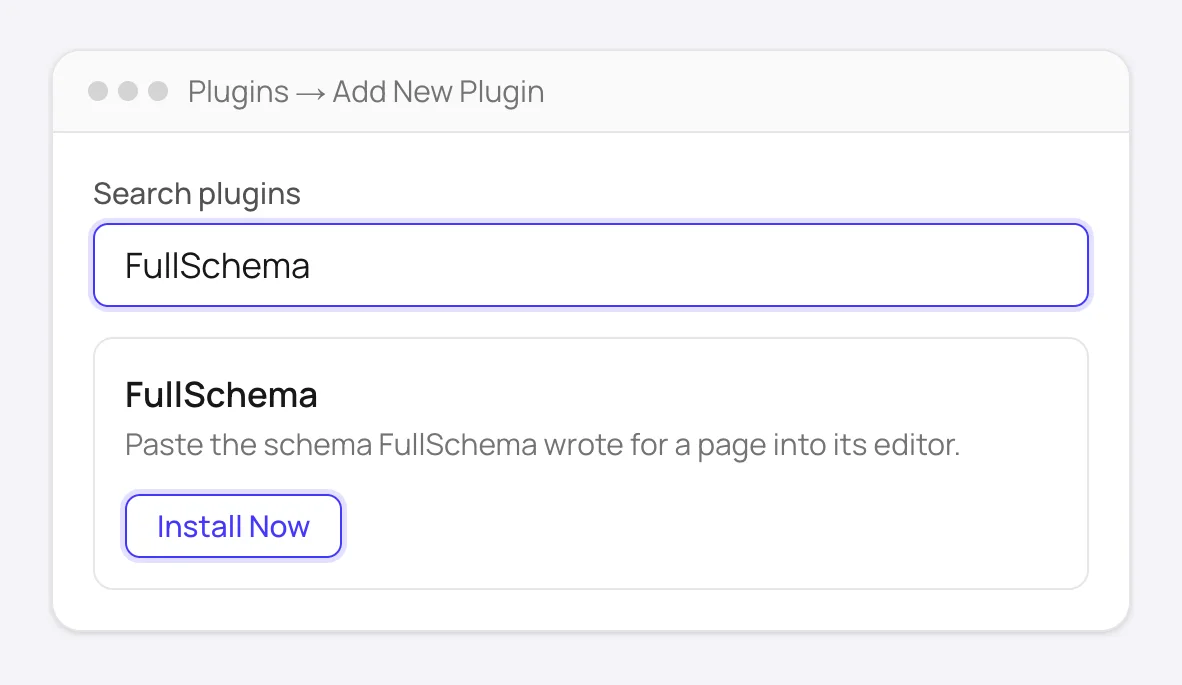
Plugins → Add New Plugin: search for FullSchema, then Install Now and Activate. - 1
- 2
Generate the schema
A few seconds per page.
- 1Open the page on your live site and copy its address from the browser bar.
- 2Paste it into FullSchema and click Generate schema.
- 3Using Yoast or Rank Math? Keep Add alongside selected. It fits into their schema instead of repeating it.
- 4Keep HTML selected and click Copy.
- 1
- 3
Paste it on the page
Every post, page and WooCommerce product has the box.
- 1In WordPress, open the post, page or product for editing.
- 2Scroll down to the FullSchema box under the editor.
- 3Paste the code. The box checks it right away and says Looks good. Save the page to add it.
- 4Click Update (or Publish on a new page).
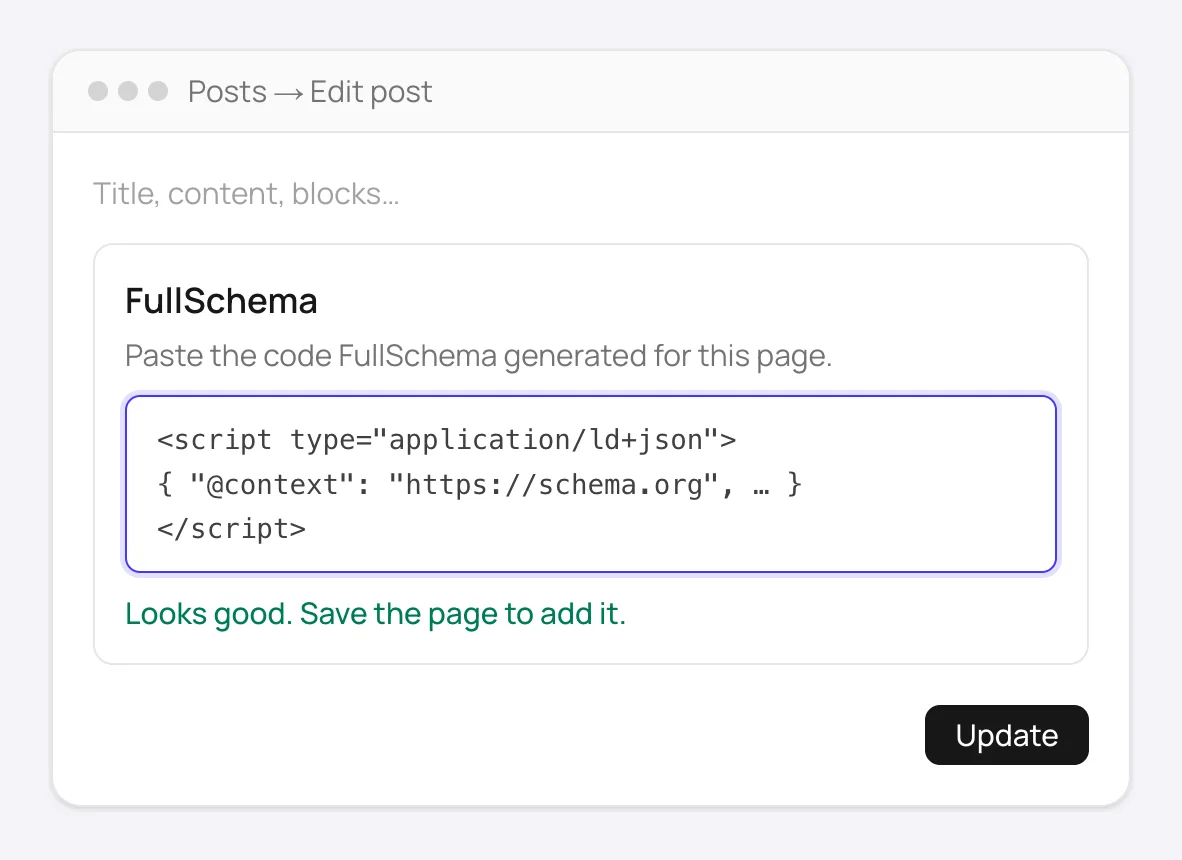
The FullSchema box under the editor checks the code as soon as you paste it. - 1
- Step 4
Check it's live
One click, and it's free.
- 1Back in FullSchema, click Check it's live under the result.
- 2When it says It's live, you're done.
- 3Using a caching plugin? Clear its cache first so the page shows the new code.
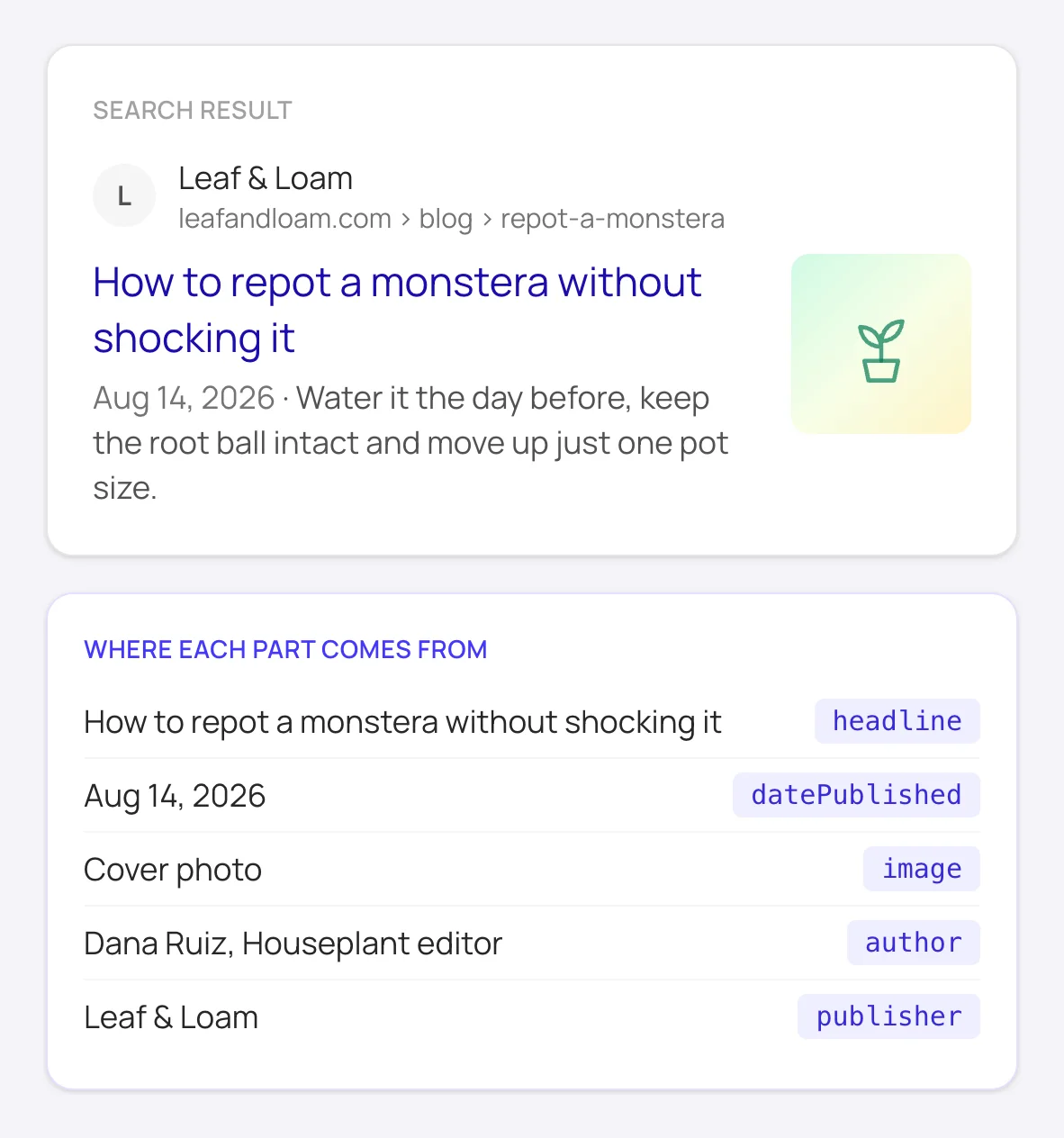
What complete Article schema tells search engines about a post. The search engine decides how to show it. That's it. Search engines and AI tools can now read this page's full details.
- 1
Good to know
Why a plugin and not a Custom HTML block? The code lives in its own box, not in your content, so editing the page, rearranging blocks or switching to Elementor or Divi can't break it. It goes into the page's <head>, and WordPress can't strip it for users who aren't allowed to post scripts.
Small on purpose. No settings page, no account connection, and it never contacts any server. It adds only the schema you pasted, and only after checking that it's valid schema code.
Already using Yoast or Rank Math? Keep it. FullSchema detects the plugin's graph and the result page defaults to Add alongside, a block that links into the plugin's @ids instead of repeating them.
To update a page's schema, paste the new code over the old one and save. To remove it, empty the box and save. The blog page and the WooCommerce shop page use the box on their page under Pages.
Other ways to add schema to WordPress
Can't install plugins, or prefer not to? The same code works in any of these. They just take a little more care.
- Custom HTML block
- In the block editor, click
+, add aCustom HTMLblock anywhere on the page and paste the code as is. Visitors don't see it. Authors and Contributors can't save script tags this way, and on multisite only Super Admins can. - Page builders
- In Elementor, Divi or Beaver Builder, use the builder's HTML or Code element. A Text element escapes the script tag and prints the code on the page instead.
- Classic editor
- Switch to the
Texttab, notVisual, and paste the code at the end of the content. The Visual tab turns it into plain text. - Site-wide code
- A header and footer code plugin puts code on every page. Use it only for what's true everywhere, like your
Organizationdetails. Page-specific schema belongs on its own page.
How to add schema to WordPress manually
Without FullSchema: what the same result takes by hand.
You can add complete schema to WordPress on your own. It takes longer per page, and this is what the work looks like.
- 1. Use what your SEO plugin already offers
- In Yoast, each post's
Schematab lets you pick the page type and article type, and its FAQ block adds FAQ markup for the questions inside it. Rank Math's free Schema Generator has ready forms for types likeProduct,LocalBusiness,EventandRecipe; you fill in each field by hand. Custom types and reusable templates are part of Rank Math PRO. - 2. Write the rest by hand
- For anything the plugin doesn't cover, write a JSON-LD block yourself. Pick the most specific type on schema.org, check Google's documentation for the fields that type needs to qualify for a rich result, and use only details that are visible on the page. The FullSchema plugin's box takes hand-written JSON-LD too, or use a
Custom HTMLblock. - 3. Validate before you move on
- Google's Rich Results Test shows whether the page qualifies for a rich result. The Schema Markup Validator checks everything else, including types Google doesn't display. Fix every error; warnings about optional fields are worth a look too.
- 4. Keep it in step with the page
- Hand-written schema doesn't update itself. When a price, opening hours or a service changes on the page, change the block too. Markup that no longer matches the page can lose its rich result, and Google's guidelines treat misleading markup as spam.
One page, one graph: how FullSchema fits next to your SEO plugin
Yoast SEO and Rank Math write a schema graph on every page: Organization (or Person), WebSite, WebPage and BreadcrumbList, each with an @id like https://yoursite.com/#organization. That graph is meant to be extended, not fought. Most tools ignore it and hand you a second full block; search engines then see two WebPages and two Organizations describing the same thing and pick one, not always the better one. FullSchema reads the plugin's graph first and builds the block to slot into it.
- What gets left out
WebSite,BreadcrumbListand the plainWebPagenode. The plugin already has them, and they'd be identical.- What gets merged
- Your business entity. If the page is about a
LocalBusiness,MedicalBusinessor any organization type, FullSchema gives that node the plugin's#organization@id. Same entity, one identity, with the address, phone, hours and social profiles the plugin never wrote added to it. AFAQPagemerges into the plugin'sWebPagethe same way, so the page gains the type instead of being declared twice. - What stays
- The page-specific entity the plugin doesn't write:
Product,Service,Articledetails,Event, branches. TheirisPartOf,publisherandproviderlinks point at the plugin's@ids, so the whole thing reads as one graph. - Installation check knows both
Check it's liveand Site Monitor accept either theAdd alongsideblock or the fullReplace everythingblock. You don't have to tell us which one you pasted.
In practice: keep Yoast or Rank Math for titles, sitemaps and the site graph; paste FullSchema's block into the FullSchema box on the pages that need a real entity. Nothing to change in Yoast or Rank Math, no PHP filter.
What people ask about WordPress schema, answered
Collected from Reddit, the WordPress community and SEO forums. Straight answers, including the cases where you don't need us.
Yoast or RankMath already adds schema. Do I still need to add Product or FAQ schema myself?
Both plugins write a site graph on every page: Organization, WebSite, WebPage, BreadcrumbList, plus Article on posts. They only write FAQPage if you use their FAQ block, and Product only through a WooCommerce add-on. For everything else (services, events, recipes, a LocalBusiness with hours) the page-specific block is on you. Keep the plugin's graph. FullSchema recognizes it and, by default, gives you an Add alongside block that links into the plugin's @ids and merges your business entity into its Organization node, so nothing is declared twice. Paste it into the page's FullSchema box and you're done.
My FAQ schema validates, but the FAQ rich result never shows in Google.
Google stopped showing FAQ rich results for every site on May 7, 2026. Valid FAQPage markup still tells search engines and AI assistants what the questions and answers on the page are, so FullSchema keeps writing it when the page has a real Q&A section. It just won't add the accordion under your listing. If the goal is a visual result, put the effort into Product, Article, Event or LocalBusiness instead.
Rich Results Test shows two Product blocks after I added mine. Which one do I delete?
Neither, unless you want to. WooCommerce, an SEO plugin or a page builder often writes its own Product, and two blocks for the same product aren't an error: search engines read both. What matters is that they agree. If the other block shows a different name or price, fix it where it comes from (the product itself or the plugin's settings). Turning the thinner one off in the SEO plugin's schema settings is tidier but optional.
I pasted the script tag but it shows up as text on the page, or disappears after saving.
It shows up as text in a Paragraph block, the Classic editor's Visual tab or a plain Text widget, all of which escape HTML. It disappears when your user role isn't allowed to save scripts. The FullSchema plugin avoids both, because its box keeps the code outside your content. Without the plugin, use the Custom HTML block, your page builder's HTML or Code widget, or the Classic editor's Text tab. Then confirm on the live page with View Page Source, not the editor preview.
Should the schema go in the head through a header/footer plugin, or inside the post content?
Google reads JSON-LD anywhere in the HTML. Page-specific schema belongs on that page only. The FullSchema plugin puts it in that page's <head>, which is the tidiest place; a block in the content works just as well for search engines. A header plugin is for site-wide schema (your Organization details), added once, not repeated in every post.
Does the FullSchema plugin work with WooCommerce products?
Yes. Every product gets the FullSchema box under the product editor, the same as posts and pages, and the shop page uses the box on the Shop page under Pages. If WooCommerce or another plugin already writes a thinner Product block, see the question about two Product blocks above.
Do I have to do this for every single post and page?
No. Start with the pages that can earn a rich result or that already rank: products, services, location pages, the top articles. Tag archives, author pages and pagination can wait. Add the site to FullSchema and the free site report shows which pages have only the plugin's graph and which have nothing, so you can pick a first batch instead of guessing.
Not sure what your WordPress pages have today? The site report is free.
Check every page freeWordPress schema markup questions
Will this conflict with my SEO plugin's schema?
No, and you don't have to touch the plugin. When FullSchema sees Yoast's or Rank Math's graph on the page, the result defaults to Add alongside: the block leaves out what the plugin already writes (WebSite, WebPage, BreadcrumbList), links into the plugin's nodes by @id, and merges your business or page entity into the plugin's node instead of declaring it twice. Paste it into the FullSchema box. If you'd rather turn the plugin's schema off and run one full block, switch to Replace everything on the result page.
Do I have to use the FullSchema plugin?
No, it's just the easiest way. A Custom HTML block does the same job for one page, as described under Other ways above. The plugin keeps the code out of your content, checks it as you paste, and works the same for every user role.
Is the plugin free, and will it slow my site down?
It's free, from the WordPress.org plugin directory. It has no settings and never contacts any server, FullSchema's included. On the page it adds only the schema you pasted, so there's nothing extra to load.
What happens if I deactivate or delete the plugin?
The schema stops showing on your pages right away. Deleting the plugin also removes everything it stored, so if you install it again later, paste the code again.
Ready to generate WordPress schema?
Paste your page's URL and FullSchema handles the rest. No dropdowns, nothing to fill in by hand.