
Check schema markup on every page of your site, free
The Rich Results Test takes one URL at a time and Search Console only reports what Google chose to notice. Add your domain and see, page by page, where schema exists, where it's missing, and where a plugin left a generic stub.
- Cost
- Free, no card
- Pages checked
- Up to 1,500 per site
- Time
- A few minutes
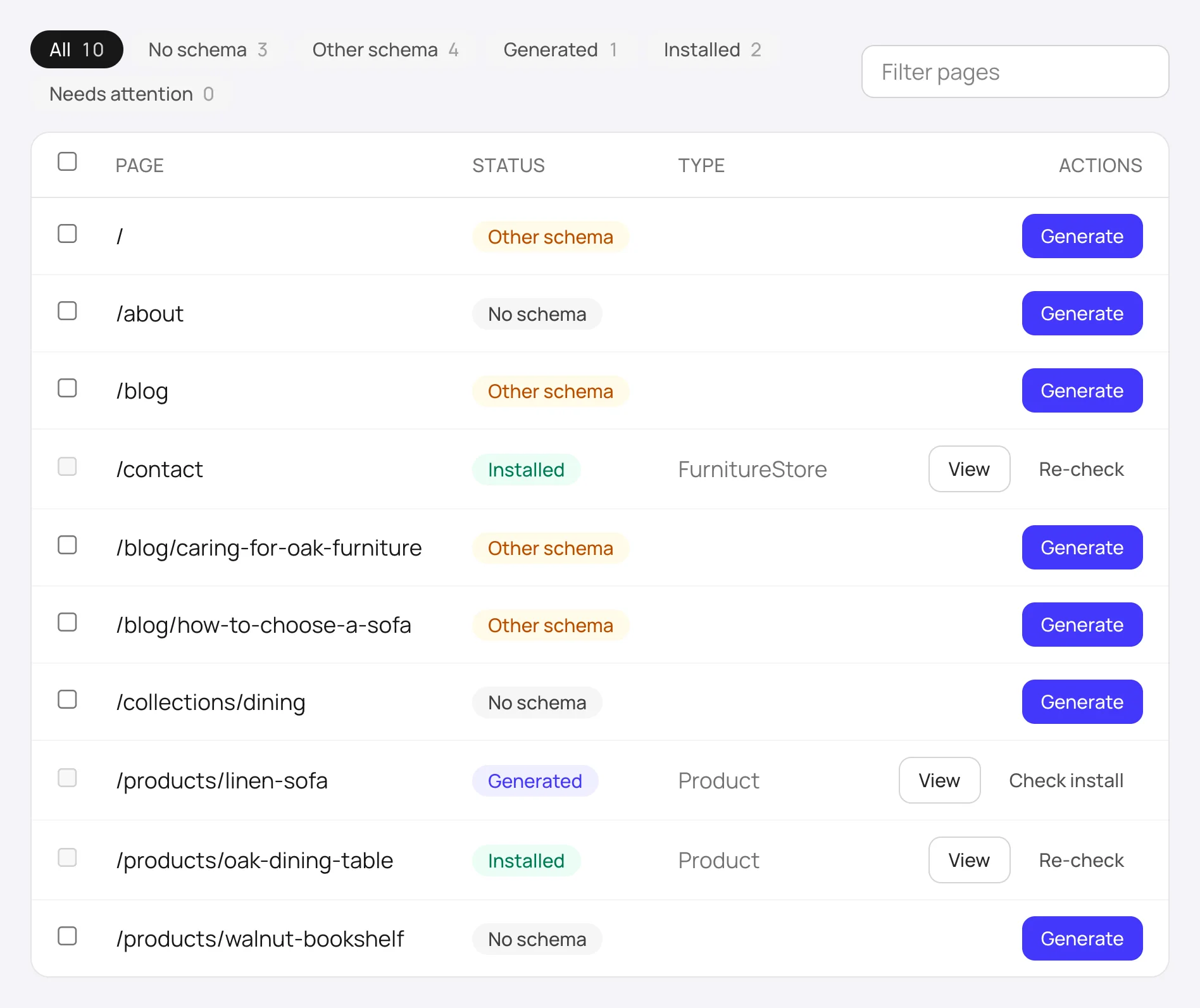
The report, as it looks in your dashboard
How people check schema site-wide today, and where each stops
Ask on Reddit or an SEO forum and you get the same answers. They're all fine tools; none of them was built to answer "which of my pages have no schema at all" without a license or a script.
Rich Results Test / Schema Validator
One URL per test
Free
Errors in a block you already have
Which pages have nothing
Search Console enhancements
Pages Google chose to report
Free
Rich result types Google detected
Pages with no schema, types without rich results
Screaming Frog / Sitebulb
Whole site, desktop crawl
Free to 500 URLs, then a yearly license
Every block, with validation
Setup, exports, no fix built in
FullSchema site report
Whole site, from the sitemap
Free
No schema / plugin schema (types) / installed, per page
Validation of plugin blocks (done when you generate)
Limits as published by each tool at the time of writing; check their sites for current pricing.
From domain to report in a few minutes
The first four steps never touch your credits. You only pay when you decide a page should get schema.
- 1
Sign in and open Sites
FreeA Google or email sign-in is enough. Go to
Dashboard → Sitesand hitAdd site. You get a small welcome balance, but you won't need it for the report. - 2
Enter the domain or, better, the sitemap URL
FreeType
example.comand FullSchema looks for your sitemap on its own (robots.txt,/sitemap.xml,/sitemap_index.xmland friends). If it finds one, it shows how many pages it lists and asks you to confirm. If your site has no sitemap, it follows links from the homepage instead, which can miss pages that only load with JavaScript; you can add any missing page by URL afterwards. - 3
Wait a minute or two while pages are checked
FreeEach page is fetched once and scanned for
application/ld+jsonblocks. A progress bar shows how far along it is; about 1,000 pages take a few minutes. Nothing is generated yet and no credit is used. - 4
Read the report
FreeEvery page gets one of five states (below). Filter chips at the top show the counts at a glance: how many pages have no schema, how many carry plugin markup, how many are installed. Sort is homepage first, then shallow paths, so key pages sit at the top.
- 5
Decide what to generate
1 credit per pageTick the pages you care about and hit
Generate selected. Each page costs 1 credit ($5, less in packs) and takes about a minute; failed pages are refunded automatically. Or start with one page to see the output quality first.
Every page gets one of five states
Filter chips at the top of the report count each one, so you see the size of the gap before you read a single row.
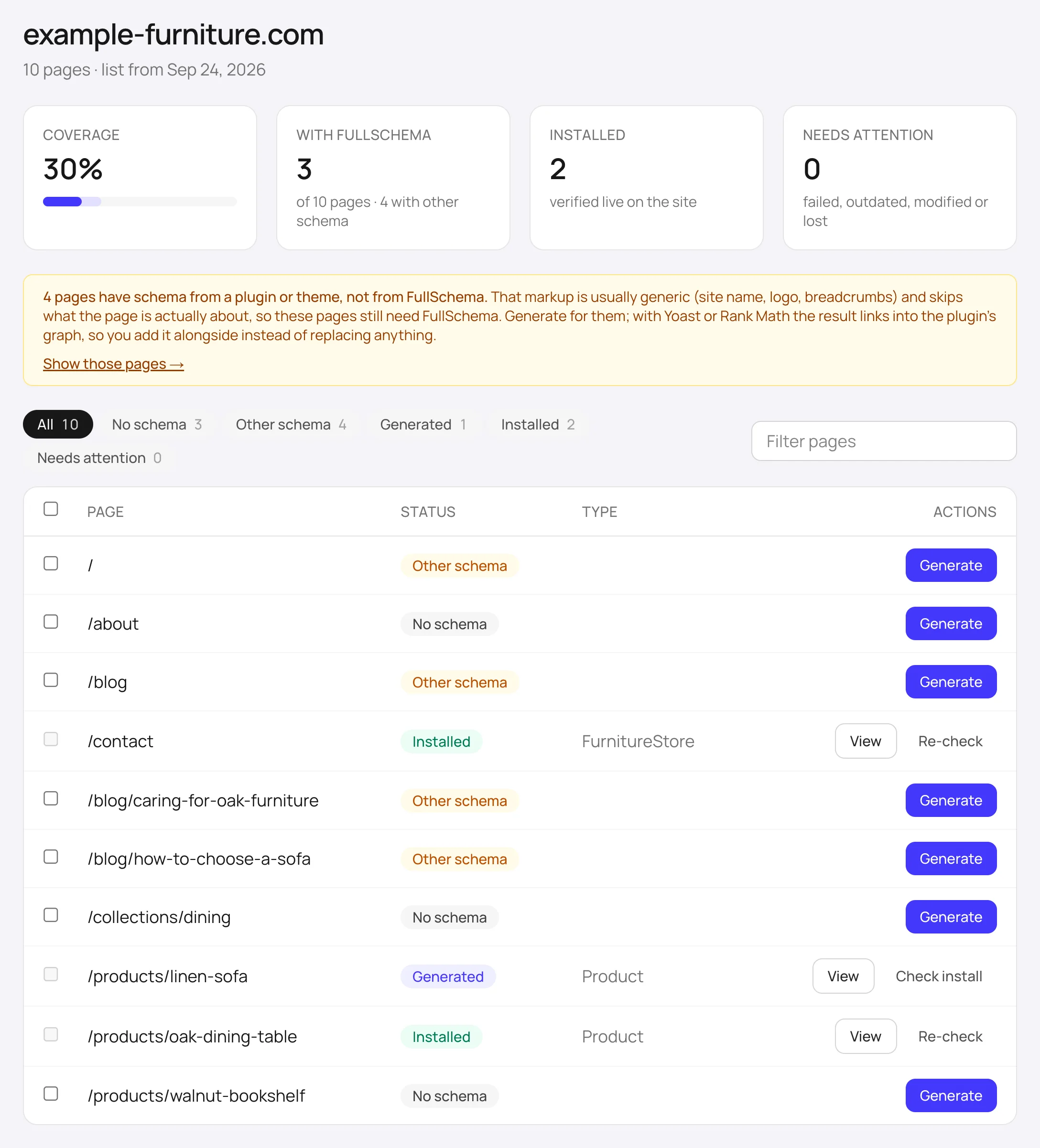
The page has no JSON-LD at all. Search engines and AI assistants are reading it unaided. These are the pages to start with.
A block exists, but FullSchema didn't write it; it usually comes from a theme or SEO plugin. You see its types (Organization, WebSite, Article...). These blocks tend to be generic and skip what the page is actually about, so they still count as uncovered.
FullSchema wrote schema for this page and it's waiting to be pasted in. Open the result, copy the script tag, paste it on the page and hit Check it's live.
The FullSchema block is live on the page; we fetched the URL and found it. This is the goal state for every page that matters.
Something changed after installation: the page content no longer matches the schema, the block went missing, or the page now returns 404. Only appears once you've checked or monitored the site.
What it doesn't do
The check reads the HTML your server sends. Schema injected later by JavaScript (some tag managers and apps do this) won't be seen, so a page can show No schema while a browser-side tool finds a block. It also doesn't score existing blocks; that comparison happens when you generate for the page.
Yoast, Rank Math and friends
Keep the plugin. Add what it can't write.
On WordPress, an Other schema page almost always carries the plugin's site graph (Organization, WebSite, WebPage, BreadcrumbList) with @id links. When you generate for one of those pages, FullSchema detects the graph and defaults to an "Add alongside" block: it leaves out what the plugin already writes, merges your business into the plugin's Organization by @id and links the page entity into the rest. Nothing is described twice. How it works on WordPress
What people ask about site-wide schema
Collected from Reddit, Quora and SEO forums, answered straight, including where other tools do the job fine.
Want the answer for your own site instead of the general one?
How do I check schema markup on all pages of my website, not one URL at a time?
Google's Rich Results Test and the Schema Markup Validator take a single URL, so for a 200-page site that's 200 pastes. The usual answers are a desktop crawler (Screaming Frog, Sitebulb) with structured data extraction turned on, or a script that walks your sitemap and pulls every application/ld+json block. Both work; both take setup and a license past a few hundred URLs. FullSchema's site report does the same walk for you: add the domain and it reads the sitemap, fetches every page and shows a filterable list. Free, in the browser, no config.
Is there a free bulk schema checker?
Mostly no. The free tier of Screaming Frog stops at 500 URLs per crawl and keeps advanced configuration behind the £199 a year license; most online checkers are per URL. Search Console is free but only reports pages where Google detected a rich result type. FullSchema's site report is free for the whole site (existing schema checks run on up to 1,500 pages per site) because we'd rather you see the gaps first and pay only when you generate.
How do I know if my website has schema markup at all?
The quickest manual check: open the page, view source, search for application/ld+json. If nothing turns up, the page has no JSON-LD (it could still have older Microdata in the HTML attributes). For the whole site that's not practical, which is what the report is for: every page gets No schema, Other schema (with the types found), or Installed.
Search Console's structured data report shows fewer pages than my site has. Why?
Because it only lists pages where Google found a rich result type it cares about (Product, Article, Recipe and so on) and has crawled recently. It never shows you pages with no schema, and it ignores types that don't drive a rich result. So an empty or short report doesn't mean the rest of the site is fine; it means Google had nothing to say about it. A crawl of your own sitemap is the only way to see the missing pages.
Yoast or RankMath already adds schema to every page. Isn't that enough?
They add a site graph: Organization, WebSite, WebPage, BreadcrumbList, sometimes Article. That's a good base and you should keep it. What they don't write is the page-specific block: the Product with price and availability, the Recipe with ingredients, the FAQPage with the actual questions, the LocalBusiness with hours. Those are the types that earn rich results and that AI assistants quote. In the site report these pages show as Other schema with the plugin's types listed, so you can see exactly what's generic and what's missing.
Screaming Frog says my pages have no structured data, but I can see it in the browser.
Your schema is being injected by JavaScript (a tag manager, an app, a theme script) after the HTML loads. A plain crawl reads the server response and never sees it; Google usually does, after rendering, but later and less reliably. The FullSchema report reads server HTML too, so these pages show as No schema. Treat it as a hint: schema that only exists after JavaScript runs is worth moving into the HTML.
I've got 40 product pages with schema and 900 without. Which ones should I do first?
The pages you'd want to appear as rich results: products, services, recipes, events, location pages, and anything that already ranks on page one or two. Skip tag archives, pagination and thin listing pages. The report lists pages homepage first and then by path depth, and you can filter to No schema and search the URL for /product/ or /blog/ to grab a batch. Generating is 1 credit per page; a first pass of 20 to 50 pages usually covers what matters.
Two plugins are both writing schema and Search Console flags duplicates. How do I find every page affected?
Filter the report to Other schema: each page lists every type found, so a page carrying Organization twice, or Product from both WooCommerce and an SEO plugin, stands out. When you generate for one of those pages, the result recognizes the SEO plugin's graph and gives you a block that links into it by @id, so you keep the plugin and add only the page entity. A second Product from a builder or app is the one to remove.
I run several client sites. Can I audit them all in one place?
Add each domain to one account. The Sites page shows coverage per site and the next step for each; the Overview shows what's unfinished across all of them. Credits are shared across sites, and Site Monitor can watch each one weekly for drift.
Before you add a site
Is the site report really free?
Yes. Listing pages, finding the sitemap and checking each page for existing schema never use credits. Credits are only spent when you ask FullSchema to generate schema for a page. There is a daily limit on how many new domains one account can add, to prevent abuse.
Does it validate the schema that's already on my pages?
No. The report tells you a block exists and which schema.org types it declares. It doesn't grade that block. When you generate with FullSchema for a page that already has schema, the result compares the two in detail: what the old block is missing, what's outdated, and why keeping both would make them compete.
My site has 3,000 pages. Will it work?
The sitemap is read in full. Existing-schema checks run on the first 1,500 pages; the rest are listed and can still be generated. If you need a bigger site fully checked, write to us.
Why does the count look low for my site?
Almost always because there's no sitemap and the homepage doesn't link to everything, or product listings load with JavaScript. Publish a sitemap (most platforms have one built in) and rescan, or paste the sitemap URL directly.
Can I keep the report current?
Yes, two ways. The Check now button on the site page re-verifies every installed block on demand, free, up to once an hour. Site Monitor does it weekly on its own, emails you when a page drifts or a block disappears, and picks up new pages from the sitemap. $12 per site per month, optional.
I manage several client sites. Anything for agencies?
Add each client's domain to one account; the Sites page shows coverage per site and the Overview shows what's unfinished across all of them. Credits are shared across sites. For volume pricing, write to hello@fullschema.app.
See your site's report
Add the domain, wait a couple of minutes, decide what to generate. The report is free and stays in your account.
Installing the code on your platform