
Add schema markup to Webflow
Give Google and AI assistants your app's price, rating and platforms exactly as your page shows them. Every Webflow page, Collection pages included, has a field for it.
- Built in: the page's
Schema markupfield - Paste, Save, publish
- Starter plan? A Code Embed works too
- SoftwareApplication, Product, FAQ and more
Your page
HoverTap a detail to trace it
Help desk software
Tally Desk
4.7 (1,240 reviews)
Pricing
$19.00 per user per month
Available on
Web · iOS · Android
FullSchema reads it and writes the schema search engines and AI read.
tallydesk.com
Tally Desk: Help desk software for small teams
4.7 (1,240)·$19.00·Business
Web, iOS, Android
Simple help desk for a 5-person team?
Tally Desk is help desk software rated 4.7 from 1,240 reviews. It costs $19.00 per user per month and runs on Web, iOS, Android.
tallydesk.com<!-- added to the page's <head> --><script type="application/ld+json">{"@context": "https://schema.org","@graph": [{"@type": "SoftwareApplication","@id": "https://tallydesk.com/#app","name": "Tally Desk","description": "Help desk software for small teams: shared inbox, live chat and a help center.","url": "https://tallydesk.com/","image": "https://tallydesk.com/images/inbox-screen.png","applicationCategory": "BusinessApplication","operatingSystem": "Web, iOS, Android","featureList": ["Shared inbox","Live chat","Help center","Reports"],"offers": {"@type": "Offer","price": "19.00","priceCurrency": "USD","priceSpecification": {"@type": "UnitPriceSpecification","price": "19.00","priceCurrency": "USD","unitText": "per user per month"}},"aggregateRating": {"@type": "AggregateRating","ratingValue": "4.7","reviewCount": "1240"},"publisher": { "@id": "https://tallydesk.com/#org" }},{"@type": "Organization","@id": "https://tallydesk.com/#org","name": "Tally Desk","url": "https://tallydesk.com/","logo": "https://tallydesk.com/images/logo.png","sameAs": ["https://www.linkedin.com/company/tallydesk","https://x.com/tallydesk"]},{"@type": "WebSite","@id": "https://tallydesk.com/#website","url": "https://tallydesk.com/","name": "Tally Desk","publisher": { "@id": "https://tallydesk.com/#org" }},{"@type": "WebPage","@id": "https://tallydesk.com/#webpage","url": "https://tallydesk.com/","name": "Tally Desk | Help desk software for small teams","isPartOf": { "@id": "https://tallydesk.com/#website" },"about": { "@id": "https://tallydesk.com/#app" },"inLanguage": "en-US"}]}</script>Short answer
To add schema markup to Webflow, open the page's settings from the Pages panel, scroll to the Schema markup field, paste the complete JSON-LD block with its script tags, save, and publish the site. The field needs a paid Site plan; on Starter, a Code Embed element carries the same code.
- Where it goes
- Page settings → Schema markup
- Plan needed
- Paid Site plan (Embed on Starter)
- Setup time
- ~2 minutes
Updated
How to add it
- 1
Generate the code
Paste the published URL, on your custom domain or the
.webflow.ioaddress, not the Designer preview.Copyon the result gives you the block with its<script>tags. - 2
Open the page's Schema markup field
In the Designer, open the
Pagespanel, hover over the page and click theSettingsicon. Scroll down toSchema markup. - 3
Paste and save
Paste the block as is, script tags included, and click
Save. If the field already holds a draft from Webflow AI, replace it. If the page has schema in itsCustom Codefrom before, remove it there, so the same markup isn't on the page twice.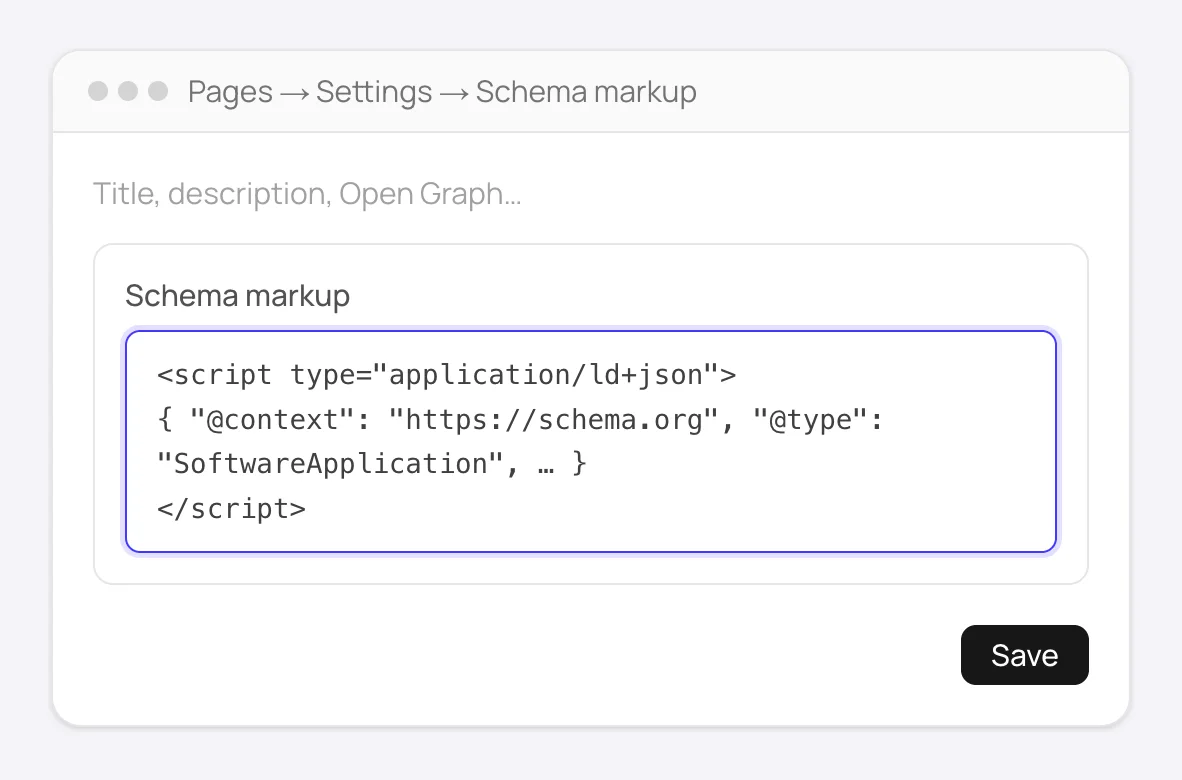
Pages → Settings → Schema markup: paste the block as is and click Save. - 4
On the Starter plan, use a Code Embed
No Schema markup field? Drag a
Code Embedelement onto the page and paste the block into it. It ends up in the page body instead of the head, which is fine: Google reads JSON-LD anywhere in the HTML.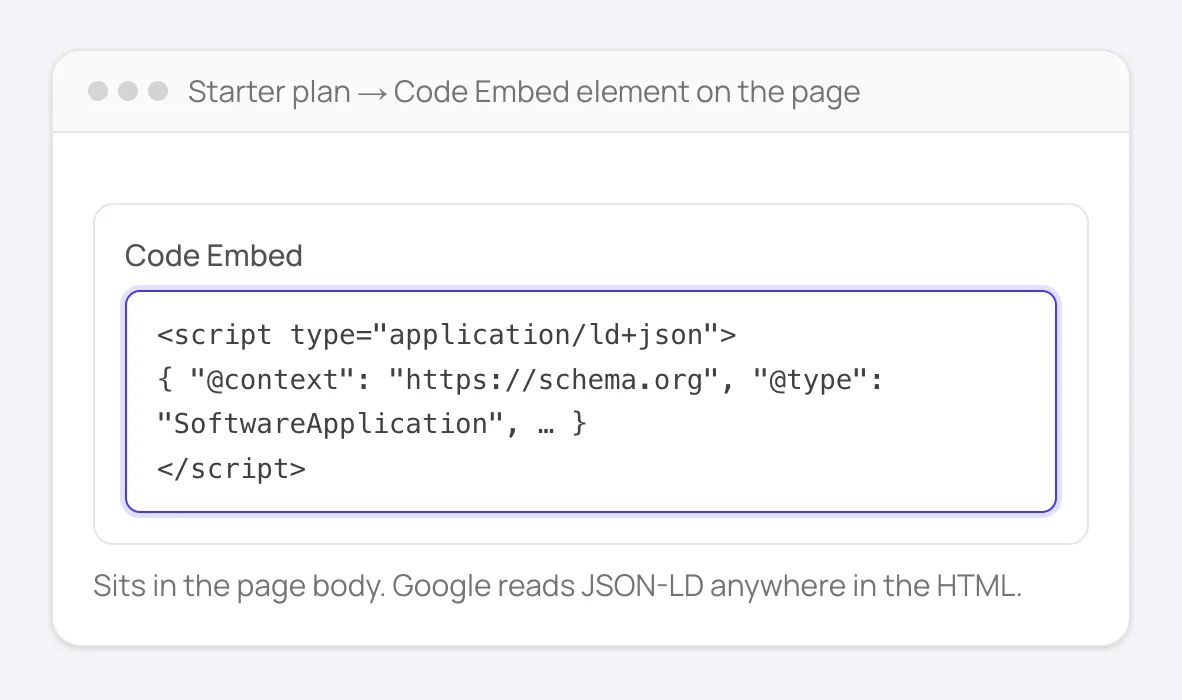
On Starter: the same block in a Code Embed element. It sits in the body, which Google reads just as well. - 5
Publish the site
The schema only goes live once you click
Publish; saving the page settings isn't enough on its own. - 6
Confirm it shipped
View the published page's source (not the Designer preview) and search for
application/ld+json.
What the markup can add to a software page's search result, and which field each part comes from.
Good to know
Collection pages have the same Schema markup field, and it can use CMS fields, so every item gets its own values. Generate for one item page, paste it into the template's field, then swap the fixed values for CMS fields like the name or price. Plain text, Image, Link, Number and Date fields work; Reference, Multi-reference and Multi-image fields don't.
Site-wide schema (Organization or WebSite) belongs in Site settings → Custom code → Head code, once, instead of in every page's field.
How to add schema to Webflow manually
Without FullSchema: what the same result takes by hand.
You can build complete schema in Webflow on your own, including for CMS pages. Four steps cover it.
- 1. Try Webflow AI's draft
- On paid plans, the
Schema markupfield in page settings has aGenerate schema markupbutton that drafts JSON-LD from the page, with CMS fields on Collection pages. Treat the draft as a starting point: check it for relative URLs and for fields Google requires but the draft left out. - 2. Write it yourself for full control
- Pick the most specific schema.org type, check Google's documentation for the fields it needs, and write the block with only what the page shows. Paste it into the page's
Schema markupfield; on a Collection template, bind CMS fields for the values that change per item. - 3. Validate several CMS items
- One template produces many pages, so test a few of them in the Rich Results Test, especially items with empty fields. An empty CMS field can leave an invalid value in the published markup.
- 4. Keep static pages current
- CMS bindings update themselves; static pages don't. When a price, hours or a service changes on a static page, update its block too.
What people ask about Webflow schema, answered
Collected from Reddit, the Webflow community and SEO forums. Straight answers, including the cases where you don't need us.
How do I add schema to CMS collection pages when every item has different data?
Open the Collection template's page settings and scroll to Schema markup. Write one block there and bind CMS fields for the values that change per item (name, price, image, dates). Plain text, Image, Link, Number and Date fields work; Reference, Multi-reference and Multi-image fields don't. Every field you use must be filled in on every item, or that item's block breaks. Generate for one live item page with FullSchema first and use the result as the model.
The Schema markup field is missing or locked. Why?
It needs a paid Site plan or a paid Workspace, and the Reviewer role can't edit it. On the free Starter plan, drag a Code Embed element onto the page and paste the script tag there. It ends up in the body, which search engines read just as well.
Schema markup field or Custom Code: which one?
The Schema markup field. It's made for this and sits with the page's other SEO settings, so it's easy to find later. Schema you already added through Custom Code keeps working; just don't keep the same block in both places, or the page carries it twice.
It's in the Designer, but the Rich Results Test can't find it.
Two usual causes: the site wasn't published after the change, or you tested the .webflow.io staging URL while the custom domain is what's live. Publish to all domains, then check the live custom domain with View Page Source.
Does Webflow generate any schema on its own?
Not automatically. Webflow writes sitemaps and Open Graph tags, but a page has no JSON-LD until someone adds it; paid plans can draft a block with Webflow AI on request. The free site report in FullSchema shows the true count of pages with no schema on a Webflow site, usually most of them.
Where does site-wide Organization schema go versus page schema?
Organization or WebSite once, in Site settings → Custom code → Head code, so it isn't duplicated on every page. Page-specific types (Product, Article, Event, LocalBusiness for a location page) go in that page's Schema markup field, or an Embed on the page.
Not sure what your Webflow pages have today? The site report is free.
Check every page freeWebflow schema markup questions
I can't find the Schema markup field in page settings. What's going on?
The field comes with a paid Site plan or a paid Workspace and isn't available on Starter. A Code Embed element (from the Add panel) works around this: it can hold the same script tag directly on the page.
Does it matter that the script ends up in the body instead of the head?
Not for search engines. Google and other crawlers parse JSON-LD wherever it appears in the HTML. Head placement is a habit carried over from other kinds of scripts, not a technical requirement for structured data.
I published, but I still don't see the schema on the live page. Why?
The most common cause is forgetting to hit Publish after saving. The Designer and the live site are separate until you do. Republish, then check the live URL's source, not the Designer's preview pane.
Ready to generate Webflow schema?
Paste your page's URL and FullSchema handles the rest. No dropdowns, nothing to fill in by hand.