
Add schema markup to Framer
Framer doesn't add schema on its own. Give Google and AI assistants your event's date, venue and ticket price exactly as your page shows them, from the page's Custom Code.
- No plugin, just the page's
Custom Code - Paste into
End of <head> tag, then publish - Organization details once, in site settings
- Event, Product, Article and more
Your page
HoverTap a detail to trace it
Conference · Hosted by Systems Collective
Design Systems Day
Thu, Nov 12, 2026 · 9:00 AM
Venue
Pier 27, San Francisco
Tickets
From $240.00
FullSchema reads it and writes the schema search engines and AI read.
designsystemsday.com
Design Systems Day
Nov
12
Thu, 9:00 AM
Pier 27, San Francisco
Tickets from $240.00
Design conferences in San Francisco this fall?
Design Systems Day is on Thursday, November 12, starting 9:00 AM, at Pier 27, San Francisco. Tickets start at $240.00.
designsystemsday.com<!-- End of <head> tag --><script type="application/ld+json">{"@context": "https://schema.org","@graph": [{"@type": "Event","@id": "https://designsystemsday.com/#event","name": "Design Systems Day","description": "A one-day conference on building and running design systems.","url": "https://designsystemsday.com/","image": "https://designsystemsday.com/images/pier-27-stage.jpg","startDate": "2026-11-12T09:00:00-08:00","endDate": "2026-11-12T17:30:00-08:00","eventStatus": "https://schema.org/EventScheduled","eventAttendanceMode": "https://schema.org/OfflineEventAttendanceMode","location": {"@type": "Place","name": "Pier 27","address": {"@type": "PostalAddress","streetAddress": "The Embarcadero","addressLocality": "San Francisco","addressRegion": "CA","postalCode": "94111","addressCountry": "US"}},"offers": {"@type": "Offer","url": "https://designsystemsday.com/tickets","price": "240.00","priceCurrency": "USD","availability": "https://schema.org/InStock","validFrom": "2026-06-01T09:00:00-07:00"},"performer": [{ "@type": "Person", "name": "Priya Shah" },{ "@type": "Person", "name": "Marco Lind" }],"organizer": { "@id": "https://designsystemsday.com/#org" }},{"@type": "Organization","@id": "https://designsystemsday.com/#org","name": "Systems Collective","url": "https://designsystemsday.com/","logo": "https://designsystemsday.com/images/logo.png"},{"@type": "WebPage","@id": "https://designsystemsday.com/#webpage","url": "https://designsystemsday.com/","name": "Design Systems Day 2026 | San Francisco","about": { "@id": "https://designsystemsday.com/#event" },"inLanguage": "en-US"}]}</script>Short answer
To add schema markup to Framer, open the page's settings from the Pages panel, scroll to Custom Code, paste the JSON-LD block into End of <head> tag, and publish. Framer adds no schema on its own, and custom code runs only on the published site, on a paid site plan.
- Plan needed
- A paid site plan
- Where it goes
- Page settings → Custom Code
- Setup time
- ~3 minutes
Updated
How to add it
- 1
Generate the code
Paste the published URL, on your custom domain or the
framer.websiteaddress.Copygives you the block with its<script>tags, ready for the page's Custom Code. - 2
Open the page's settings
In the
Pagespanel, open the settings for the page (the gear icon) and scroll down toCustom Code. - 3
Paste into the head
Paste the block into
End of <head> tag.Start of <head> tagworks just as well; search engines read JSON-LD anywhere in the head.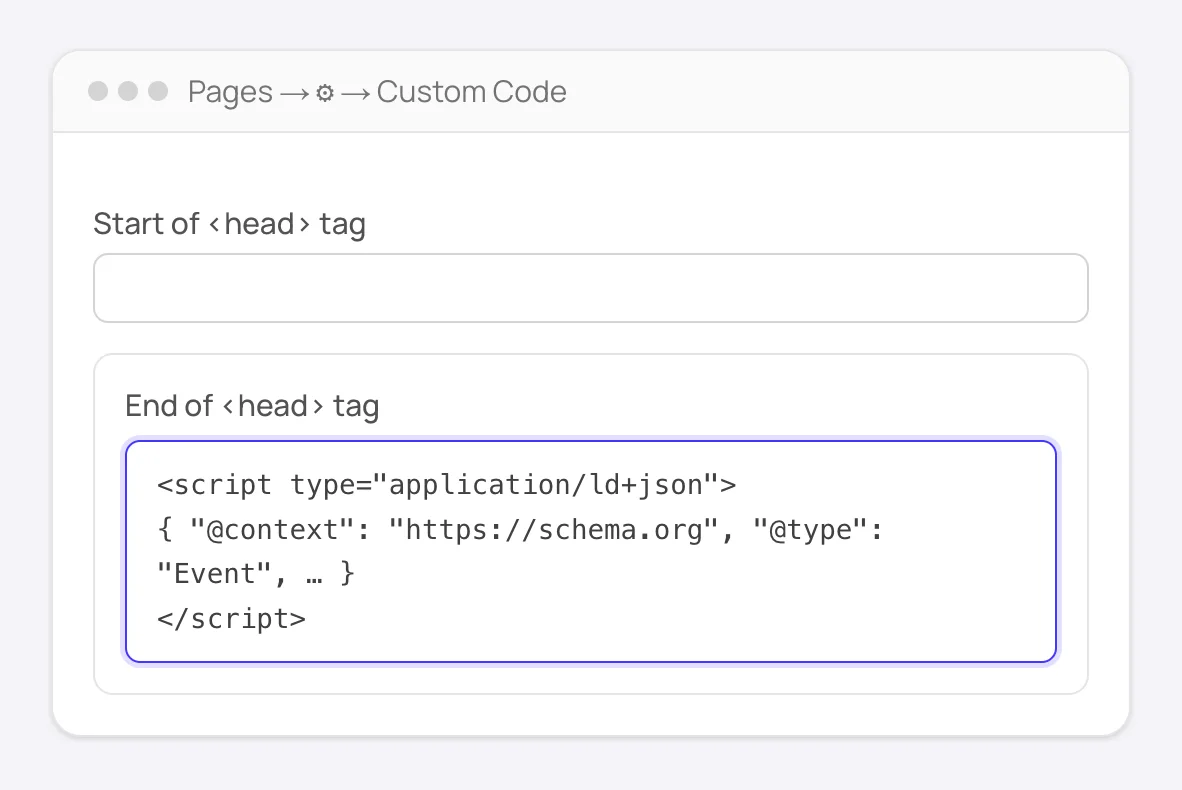
Pages → gear icon → Custom Code: the block goes in End of <head> tag. - 4
Add your business details once
Put your Organization block in the site settings under
Custom Code, placed in the head of all pages. Page-specific schema, like a product or an article, stays in that page's own settings.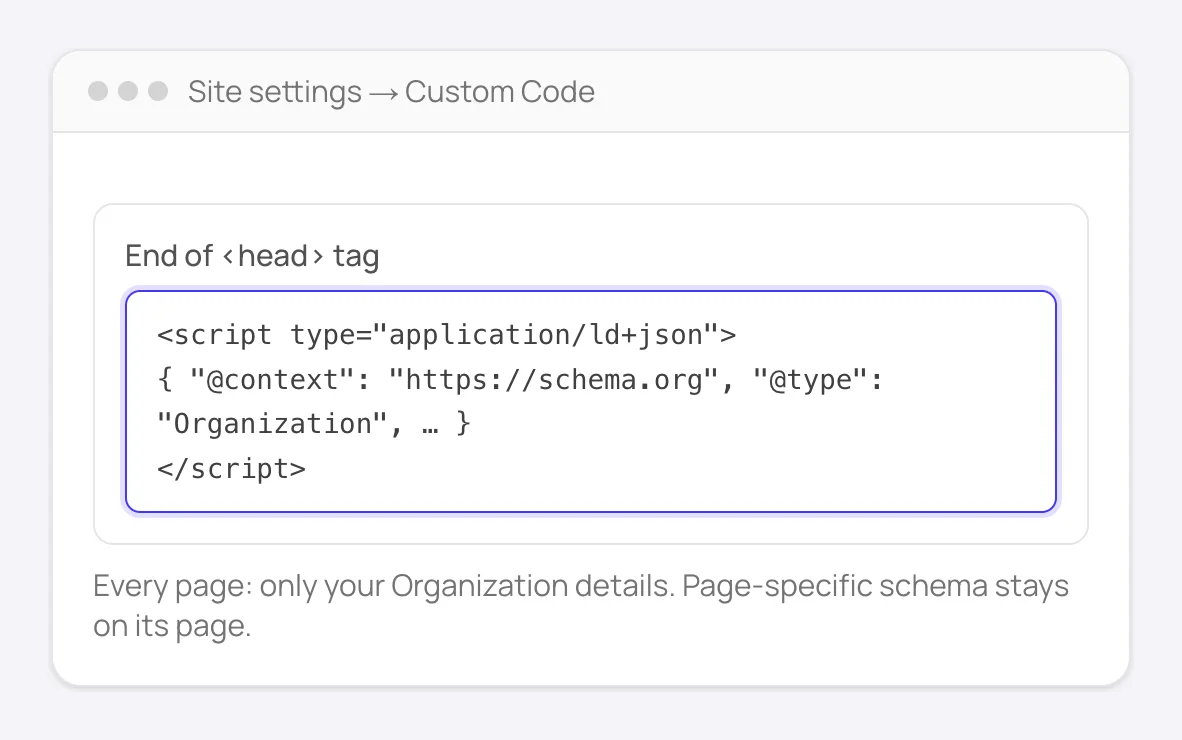
Site settings → Custom Code: one Organization block for the whole site. - 5
Publish and verify
Custom code only runs on the published site, not in the canvas or preview. Publish, then check the live URL with
View Page Sourceor Google's Rich Results Test.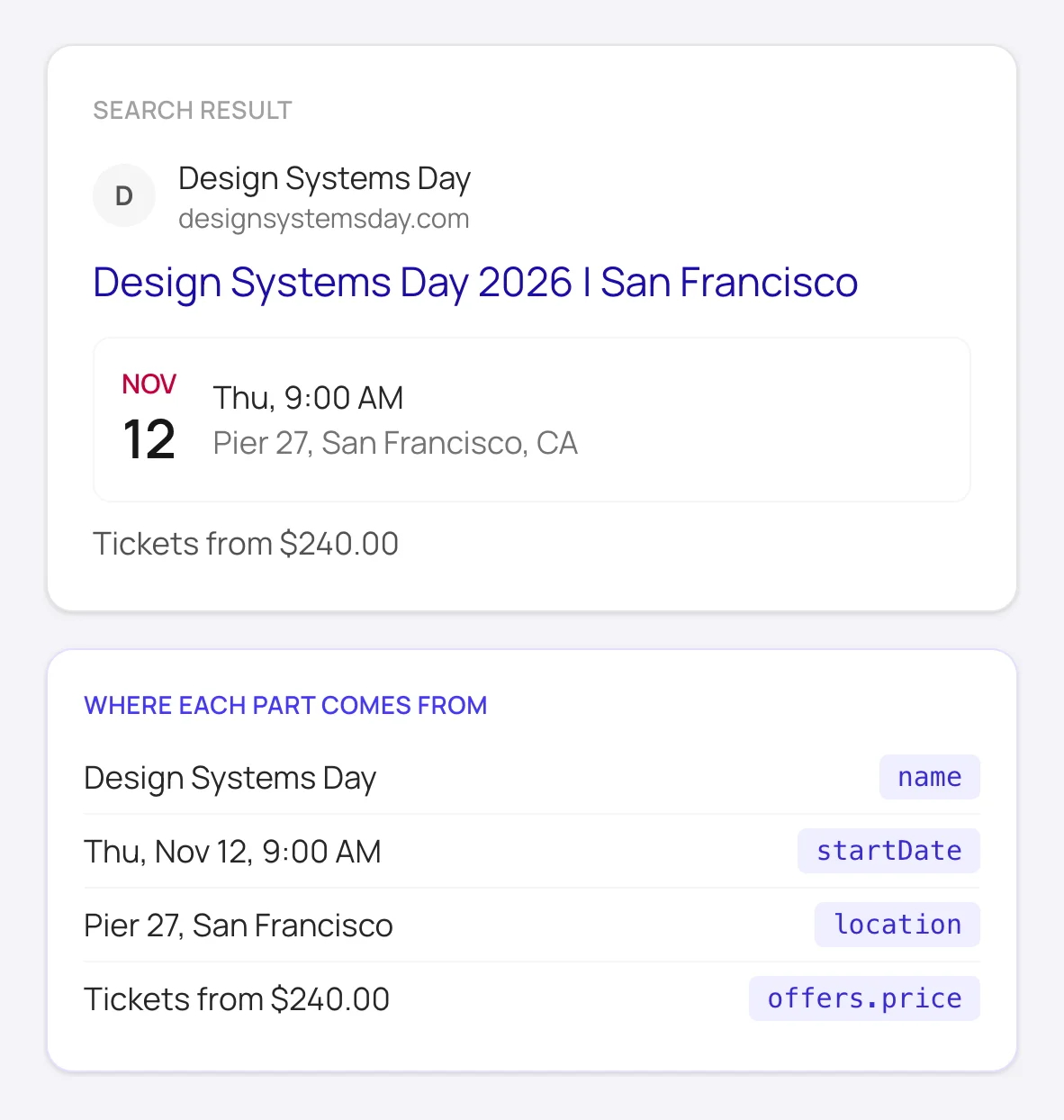
What the markup can add to an event page's search result, and which field each part comes from.
Good to know
CMS pages can take a full block per item. Add a plain text field named FullSchema to the collection and paste each item's code into it. Then, in the CMS page's Custom Code, add {{FullSchema | unsafeRaw}} once. unsafeRaw prints the field as is, so paste only code copied from FullSchema.
Prefer one template for all items? Generate for one item page, use it as the model in the CMS page's Custom Code, and replace the fixed values with variables like {{Title | json}}. The | json part keeps quotes and line breaks from breaking the JSON.
Check the domain you actually test. If the site is on a custom domain, run the Rich Results Test on that address, not the framer.website preview link.
How to add schema to Framer manually
Without FullSchema: what the same result takes by hand.
Framer adds no schema on its own, so doing it yourself means writing every block and keeping it current.
- 1. Start with the site-wide block
- Write one Organization block for the whole site: legal name, logo, website and social profiles. Add it in the site settings' Custom Code, in the head of all pages.
- 2. Write page blocks by hand
- For each important page, pick the most specific schema.org type, check Google's documentation for the fields it needs, and write the block with only what the page shows. It goes into that page's Custom Code, in the head.
- 3. Use variables on CMS pages
- On a collection page, write one block and use variables like
{{Title | json}}for values that change per item. The| jsonfilter keeps quotes and line breaks from breaking the markup. Then validate a few published items in the Rich Results Test. - 4. Keep static pages in step
- CMS variables follow your content; blocks on static pages don't. When a price, plan or feature changes on a page, update its block before or right after you publish.
What people ask about Framer schema, answered
Collected from Reddit, the Framer community and SEO forums. Straight answers, including the cases where you don't need us.
Does Framer add schema markup automatically?
No. Framer handles titles, descriptions and social images, but structured data is up to you. Without it, a product or service page gives search engines no price, no provider and no reviews to show.
The Custom Code section is locked.
Custom code is part of Framer's paid site plans. On the free plan the fields are there but can't be used on the published site.
Can I add different schema to each CMS item?
Yes. The simplest way is a plain text field in the collection that holds each item's full block, printed once in the CMS page's Custom Code with {{FullSchema | unsafeRaw}}. Or write one block in that Custom Code and use variables, like {{Title | json}}, for the values that change per item.
Is a Framer site readable by AI crawlers?
Yes. Framer publishes static HTML, so the text and any schema in the head are there on the first request. That makes Framer one of the easier platforms for AI assistants to read, as long as the schema is actually added.
I added JSON-LD but the Rich Results Test finds nothing.
Three usual causes: the site wasn't published after the change, the test ran on a different domain than the one you published to, or the code went into a page that isn't the one you tested. Open the live URL, use View Page Source, and search for application/ld+json to see which one it is.
Should my SaaS landing page use SoftwareApplication schema?
Only when the page shows what Google needs for it: a price, or a free plan stated as such, and ideally a rating. Without them the markup doesn't qualify for anything. FullSchema reads the page and picks SoftwareApplication only when those details are there; otherwise it describes the company and the site.
Not sure what your Framer pages have today? The site report is free.
Check every page freeFramer schema markup questions
Start of head or end of head?
Either. Search engines read JSON-LD wherever it is in the head. End of head keeps it out of the way of scripts that need to load first.
Does schema slow down a Framer site?
No. A JSON-LD block is a few kilobytes of text in the head. It doesn't load files or run code, so it has no measurable effect on speed.
How do I remove schema I added?
Delete the block from the page's Custom Code, or from site settings if it's site-wide, and publish again. It's gone from the live page as soon as the new version is published.
Ready to generate Framer schema?
Paste your page's URL and FullSchema handles the rest. No dropdowns, nothing to fill in by hand.