
Search Console errors

Fix product schema errors in Search Console

They show up under Product snippets and Merchant listings, usually because a theme or app wrote half a block. Here's what each message means, which ones actually matter, and how to clear them without a developer.

Free page check first, then $10 free to start. No card needed.

Updated

Two reports

Same product, two sets of rules

Google checks every Product block against two reports. One block can pass the first and fail the second, which is why the same page often shows up in both.

Product snippets

Price, rating or review under the regular search result

Needs a name and at least one of offers, review or aggregateRating. A price range (AggregateOffer) is accepted.

Merchant listings

Shopping results, with price, stock, shipping and returns

Needs name, image and an Offer with price and priceCurrency. A price range isn't enough here: you have to be the one selling it, at one price.

Critical issues make the item invalid: no rich result until it's fixed. Non-critical issues are suggestions; the item is still valid, just with less to show. Fix the red ones first.

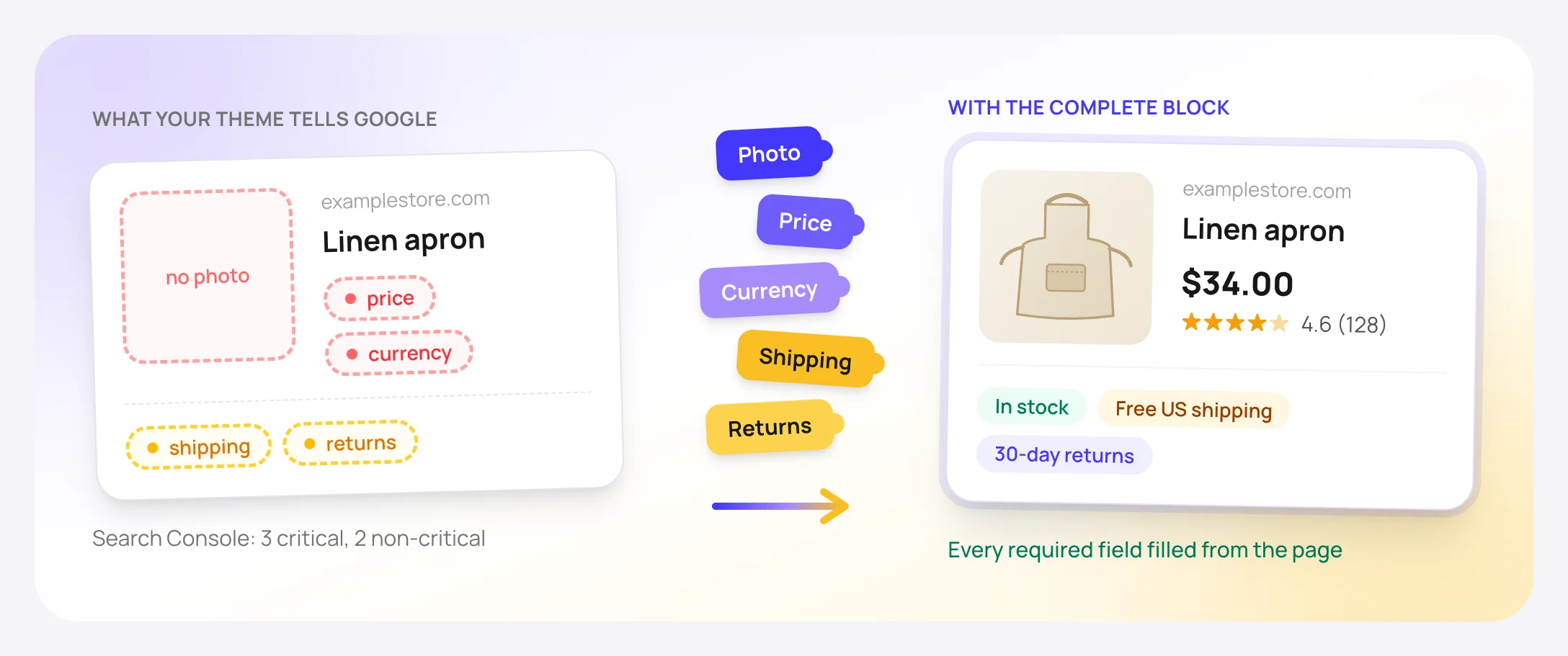
A product card from a theme's schema with no photo, price, currency, shipping or returns, next to the same linen apron as a complete shopping result: photo, $34.00, rating, in stock, free US shipping and 30-day returns
The pieces Search Console says are missing are usually on the page already. A complete block passes them on.
The errors

Each message, as Search Console writes it

Critical issueProduct snippets

Either "offers", "review", or "aggregateRating" should be specified

What it means
The page has a Product block with a name and nothing Google can show next to it: no price, no reviews, no rating. Google needs at least one of the three before the product can get a rich result.
Why it happens
A theme or app writes a Product block for every product, even when the page shows no price. Common on "Request a quote" items, discontinued products whose price was removed, and pages that aren't really product pages, like a service described as a product.
How to fix it
If the page shows a price, the block needs an offers with that price and its currency. If the page shows reviews, add them. If the page has neither, it shouldn't be marked up as a Product at all. Don't add a placeholder price or a rating that isn't on the page; Google's guidelines say markup has to match what visitors can see.
With FullSchema
Writes a Product only when the page shows a price, so this error can't come from a FullSchema block. On category pages, items without a price are listed as plain list items.

Product with a price

{
  "@type": "Product",
  "name": "Linen apron",
  "image": "https://example.com/images/linen-apron.jpg",
  "offers": {
    "@type": "Offer",
    "price": "34.00",
    "priceCurrency": "USD",
    "availability": "https://schema.org/InStock"
  }
}
Critical issueMerchant listings

Missing field "image"

What it means
Merchant listings need a product photo. Without one, the product can't appear in the shopping results Google shows from your pages.
Why it happens
The theme leaves the image out of its block, points it at a placeholder, or the photo only loads with JavaScript after the page opens, so the block never gets a real address.
How to fix it
Add image with the full address of at least one real product photo. Several photos are fine; Google prefers a clear shot of the product itself.
With FullSchema
Takes the photos from your store's own product data and the page gallery, full size, not the small thumbnails.
Critical issueProduct snippets and Merchant listings

Missing field "price" (in "offers")

What it means
There's an offer, but Google can't read a price in it.
Why it happens
The price is empty until a size or color is picked, or the theme uses a price range (lowPrice and highPrice) where a single price is needed. Product snippets accept a range; merchant listings need one Offer with one price.
How to fix it
Put one price in the offer, as a plain number without the currency symbol or thousands separators: 34.00, not $34.00. For products with variants, give each variant its own offer with its own price.
With FullSchema
Writes the price the page shows, as a number. For variants it reads each option's own price from the store's data.

Price as a number, currency on its own

{
  "@type": "Offer",
  "price": "34.00",
  "priceCurrency": "USD"
}
Critical issueMerchant listings (a warning in Product snippets)

Missing field "priceCurrency" (in "offers")

What it means
Google sees a price but not which currency it's in.
Why it happens
The theme writes the price and leaves the currency out, often because the store's currency lives in its settings, not in the product.
How to fix it
Add priceCurrency with the three-letter code (USD, EUR, GBP) in the same place as the price. It has to be the currency the page actually shows, which on stores that sell in several currencies isn't always the store's base currency.
With FullSchema
Uses the currency printed next to the price on the page, not a default from the store settings.
Non-critical issueMerchant listings

Missing field "hasMerchantReturnPolicy" (in "offers")

What it means
Google can't show your return terms ("Free 30-day returns") next to the product. It's a warning, not an error: the product stays eligible.
Why it happens
Almost no theme writes return policies, because the theme doesn't know yours.
How to fix it
Google now recommends one store-wide return policy in your Organization markup, or setting it in Merchant Center, rather than repeating it on every product. The policy needs the country it applies to and its type; the number of days is needed when returns have a time limit.
With FullSchema
Reads your return policy page (days, who pays, how items come back) and writes the policy once on your store's Organization, as Google recommends. If the store has no return policy page we can find, nothing is guessed.

Store-wide return policy

{
  "@type": "Organization",
  "name": "Example Store",
  "hasMerchantReturnPolicy": {
    "@type": "MerchantReturnPolicy",
    "applicableCountry": "US",
    "returnPolicyCategory": "https://schema.org/MerchantReturnFiniteReturnWindow",
    "merchantReturnDays": 30,
    "returnMethod": "https://schema.org/ReturnByMail",
    "returnFees": "https://schema.org/FreeReturn"
  }
}
Non-critical issueMerchant listings

Missing field "shippingDetails" (in "offers")

What it means
Google can't show the shipping cost next to the product. Also a warning; the product stays eligible.
Why it happens
Shipping costs usually live in the checkout, not in the theme, so the theme has nothing to write.
How to fix it
As with returns, Google recommends a store-wide shipping policy in Organization markup or in Merchant Center. On a product, shipping details need the destination country, the rate and the delivery time.
With FullSchema
Adds shipping to the offer when the page itself states the rate and the country ("Free UK delivery"). "Calculated at checkout" isn't a rate, so in that case it's left out rather than invented.
Non-critical issueMerchant listings

No global identifier provided (e.g., gtin, mpn, isbn)

What it means
Google can't match the product to the same item sold elsewhere, because there's no barcode number or manufacturer part number.
Why it happens
The barcode is stored in the store admin but the theme doesn't output it, or the product simply doesn't have one.
How to fix it
If the product has a barcode (GTIN, EAN, UPC) or an ISBN, add it. Handmade goods and your own brand often have none. Then leave the warning alone; making up a number is worse than having none.
With FullSchema
Includes the GTIN or MPN when the page or your store's own product data has it. It never fills one in.

Before you click Validate fix

When the broken block comes from your theme

Search Console checks every Product block on the page separately. A new, complete block is read on its own, but it doesn't delete the theme's copy, and the report keeps listing that copy for as long as it's on the page.

To clear the report, switch the old block off where it comes from. Many SEO plugins and apps have a setting for their product markup; on a theme without one, the theme developer can remove it. If you can't, the new block still gives Google the complete product; the report just won't reach zero.

No developer needed

You can fix this from your store's admin

Most fixes you'll read about involve editing theme code. Here the theme stays as it is: FullSchema writes the complete block from the page, and pasting it takes about as long as editing a product description.

$5 a page, $4 from 50 pages. A free balance on sign-up covers your first 2 pages, no card. Got many products? Paste the whole list and generate them in one go.

How that compares with hiring someone →
  1. 1

    Paste the flagged page's address

    Use the product page Search Console listed. FullSchema reads the page and your store's product data: price, currency, photos, variants, reviews, return policy.

  2. 2

    Copy the block

    It's checked against Google's required fields before you see it.

  3. 3

    Paste it where your platform takes code

    On WordPress the free FullSchema plugin adds a box under each product's editor. On Shopify it's one product field after a one-time setup. Every platform guide below shows the exact place.

  4. 4

    Test, then tell Google

    Run the page through Google's Rich Results Test. When it's clean, open the issue in Search Console and click Validate fix. Google rechecks the affected pages over the following days.

Paste the page Search Console flagged

A minute or two later you have a complete block, already checked against Google's rules.

Free page check first, then $10 free to start. No card needed.