
Rich results

Why your review stars don't show in Google

Your page shows the stars, but Google only shows the title and the price. Usually the reviews are fine and Google never got the numbers. Sometimes it's one of Google's rules.

Free page check first, then $10 free to start. No card needed.

Updated . Sources are listed at the end.

examplestore.com/products/stoneware-mug

Your page

Example Store

Stoneware mug

4.8 (214 reviews)

$28.00In stock

Reviews

★★★★★ “Keeps coffee hot, and the glaze is lovely.”

Product block

namepricestockrating 4.8 · 214

No rating in the block

examplestore.com › products › stoneware-mug

Stoneware mug | Example Store

$28.00·In stock

Rating in the block

examplestore.com › products › stoneware-mug

Stoneware mug | Example Store

4.8 (214)·$28.00·In stock

The product block, with the rating in it

{
  "@context": "https://schema.org",
  "@type": "Product",
  "name": "Stoneware mug",
  "image": "https://examplestore.com/images/stoneware-mug.jpg",
  "brand": {
    "@type": "Brand",
    "name": "Example Store"
  },
  "offers": {
    "@type": "Offer",
    "price": "28.00",
    "priceCurrency": "USD",
    "availability": "https://schema.org/InStock"
  },
  "aggregateRating": {
    "@type": "AggregateRating",
    "ratingValue": 4.8,
    "bestRating": 5,
    "ratingCount": 214
  },
  "review": [
    {
      "@type": "Review",
      "author": {
        "@type": "Person",
        "name": "Dana R."
      },
      "reviewRating": {
        "@type": "Rating",
        "ratingValue": 5,
        "bestRating": 5
      },
      "reviewBody": "Keeps coffee hot, and the glaze is lovely."
    }
  ]
}
Where stars come from

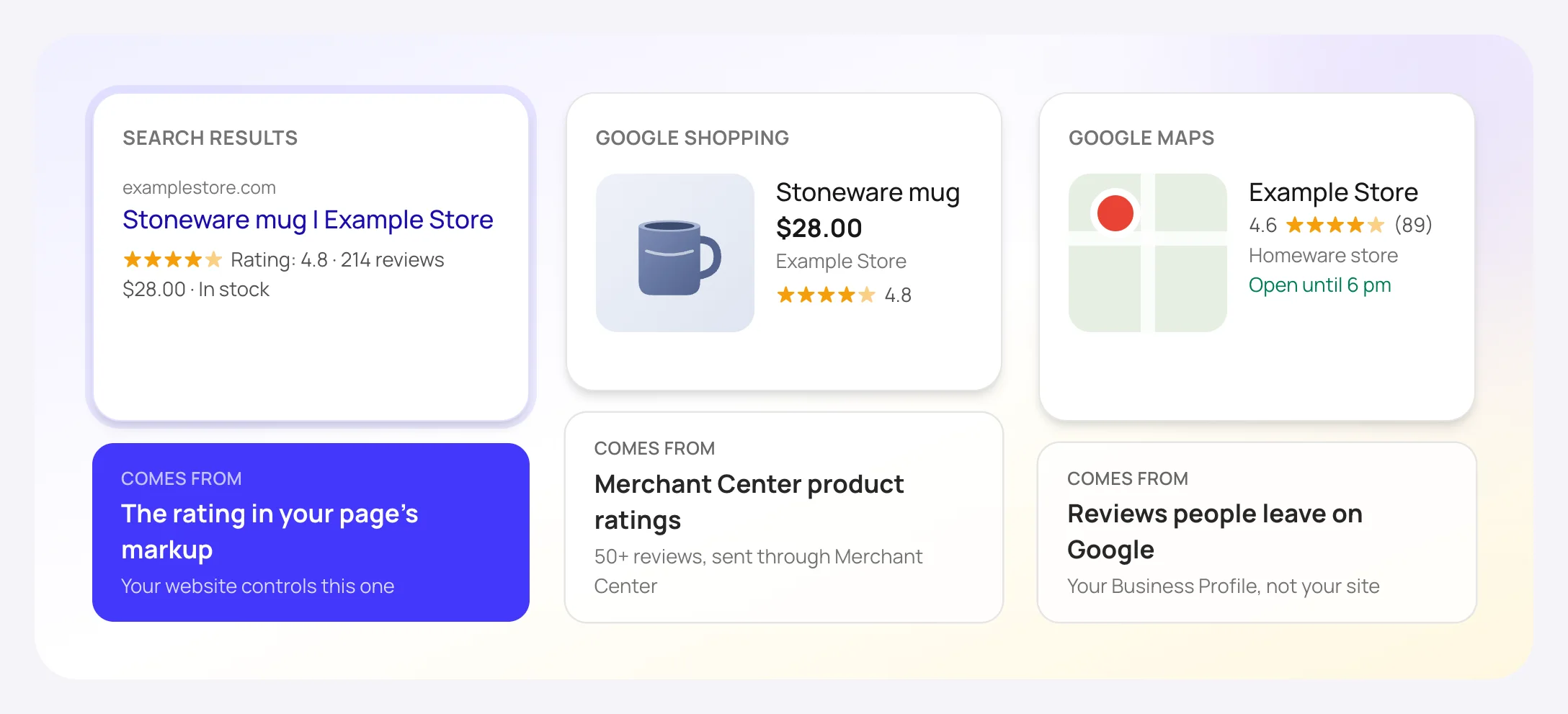
Google shows stars in three places, from three sources

Before you change anything, make sure you're looking at the right stars. Only the ones in regular search results come from your website.

Search results

Stars under a product's regular search result come from the aggregateRating or review in the page's Product markup. That's what the rest of this guide is about.

Google Shopping

Stars on Shopping ads come from Merchant Center's Product Ratings program: at least 50 reviews across your products, sent as a reviews feed or through a supported review partner, and updated at least once a month. Google says free listings can show ratings without the program.[5]

Google Maps

Stars on your Business Profile and in Maps are reviews people leave on Google. Nothing on your website changes them.

Three places Google shows stars: search results, from the rating in your page's markup; Google Shopping, from Merchant Center product ratings with 50 or more reviews; Google Maps, from reviews people leave on Google
Same stars, three different sources. Only the first one comes from your website's markup.
Seven causes

Why the stars stay off, and what to do about each

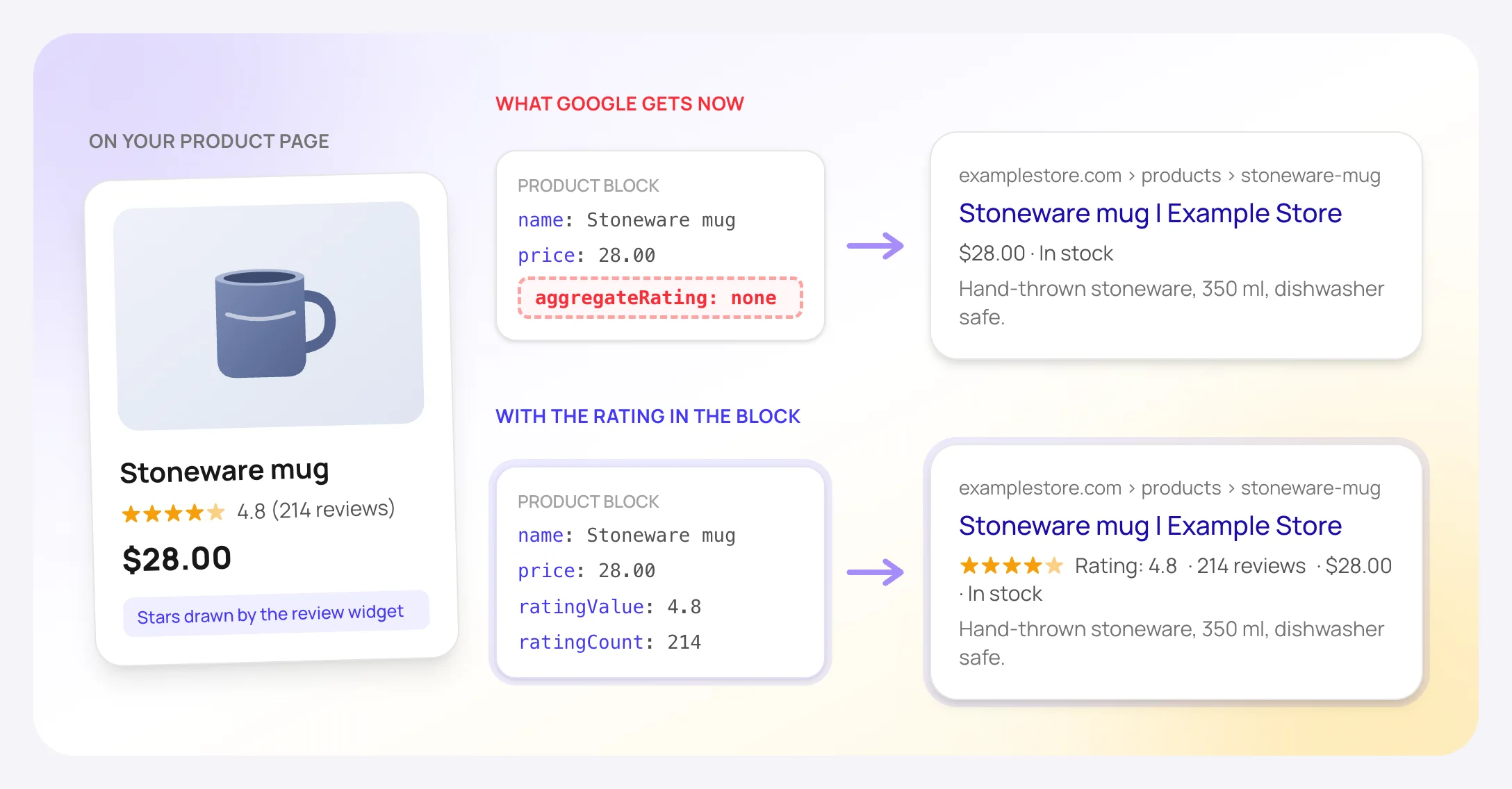
A stoneware mug page showing 4.8 stars from 214 reviews. Its Product block has a name and price but no aggregateRating, so the Google result shows only $28.00 and In stock; with ratingValue and ratingCount in the block, the result shows the stars
The stars on the page are drawn for shoppers. Google only uses the ones written into the Product block.

The first three are markup problems you can fix. The next three are Google's rules, and the last one means the markup is already fine. A two-minute test tells you which one you have.

Find your cause in two minutes

  1. 1Open Google's Rich Results Test and enter the product page's address. Use the URL, not pasted code, so the test reads the page the way Google does.[4]
  2. 2Under Detected items, open each item and look for aggregateRating.
Cause 1Markup problem

The rating isn't in the markup

How to spot it
The test finds the product with its price and stock, but no aggregateRating and no review anywhere.
Why it happens
The stars on the page come from the review app's widget, which is built for shoppers. Whether Google gets the numbers too depends on the app's markup, which is often a separate setting. Shopify's own product markup, the structured_data filter that Shopify's own themes use, Dawn included, writes the name, image, brand, description and price. It writes no rating. If the review app's markup is off, or the app doesn't write any, Google has nothing to show stars from.[6][7]
What to do
Look in your review app's settings first. Judge.me, for example, keeps it under Settings > Google, SEO and AI > SEO Rich Snippets. If there's no such setting, or the test still finds no rating with it on, the page needs a Product block that has the rating and the review count next to the price.
With FullSchema
Reads the rating and review count the page shows for the product and writes them into the Product block, next to the price and stock. Up to 5 of the store's own reviews go in too, with the reviewer's name and stars.

Price and rating in one block

{
  "@type": "Product",
  "name": "Stoneware mug",
  "image": "https://examplestore.com/images/stoneware-mug.jpg",
  "offers": {
    "@type": "Offer",
    "price": "28.00",
    "priceCurrency": "USD",
    "availability": "https://schema.org/InStock"
  },
  "aggregateRating": {
    "@type": "AggregateRating",
    "ratingValue": 4.8,
    "bestRating": 5,
    "ratingCount": 214
  }
}
Cause 2Markup problem

The rating is there, but it's broken

How to spot it
The test or Search Console flags the rating, for example Either "ratingCount" or "reviewCount" should be specified, or says the count has to be a positive number.
Why it happens
Google needs two numbers: the average and how many ratings it's based on. The usual slips are an average with no count, a product with no reviews yet that still gets a rating of 0 from 0 reviews, a score out of 10 with no bestRating (Google then assumes the top is 5), and single reviews without the reviewer's name or their own stars.[1]
What to do
Every rating needs ratingValue and either ratingCount or reviewCount. A product with no reviews gets no rating markup at all, not a zero. Add bestRating when the top of the scale isn't 5. Each review needs an author and a reviewRating.
With FullSchema
Writes a rating only when the page also shows how many ratings it's based on, and uses the same scale as the page. A product with no reviews gets no rating, and a review without stars is left out.

A score out of 10

{
  "@type": "AggregateRating",
  "ratingValue": 9.2,
  "bestRating": 10,
  "ratingCount": 57
}
Cause 3Markup problem

The rating and the price are in separate blocks

How to spot it
The test lists two Product items for the same product: the theme's, with the price, and the review app's, with the rating. Or the rating shows up on its own, outside any product.
Why it happens
The theme and the review app each describe the product. Google reads every block as a separate item, and it doesn't document how it combines two partial descriptions of the same product. A rating written as microdata only belongs to a product if it sits inside that product's microdata, which is why Judge.me's help pages tell microdata users to move the widget code inside it. If the theme describes the product in JSON-LD, there's nothing for the microdata to sit inside.[7]
What to do
Get the price and the rating into one Product block. The theme's block can stay; a second block for the same product isn't an error. If the app's copy has errors, switch it off in the app's settings so Search Console stops listing it.
With FullSchema
The block has the price, stock and rating together. On the result, the Existing schema tab shows what your theme and apps already write and what the new block adds.
Cause 4Google's rule

The page lists several products

How to spot it
Stars are missing on collection, category or search pages, while your product pages are fine.
Why it happens
Google's product rich results only support pages about a single product, or variants of one product. A collection with 24 products and 24 ratings doesn't qualify, however good its markup is.[2]
What to do
Nothing to fix on the collection page. Put the effort into the product pages, where each product has its own block.
Cause 5Google's rule

They're reviews of your own business

How to spot it
A dentist, a law firm, a hotel or a shop shows testimonials and an average score on its own site, and the markup puts that score on its LocalBusiness or Organization.
Why it happens
Google's rule: if the business being reviewed controls the reviews about itself, pages with LocalBusiness or Organization markup aren't eligible for review stars. That holds even when every review is genuine.[1]
What to do
No markup gets around it, so don't pay anyone who says theirs does. Keep the reviews on the page for visitors. The stars people see for your business in Google come from Google reviews on your Business Profile. If you sell products, courses or software and collect reviews for them on your site, those pages can still get stars.
With FullSchema
Never puts a rating on your own LocalBusiness or Organization block, so the block stays within Google's rules.What a business's own block should contain →
Cause 6Google's rule

The reviews come from Google, Trustpilot or Yelp

How to spot it
The page embeds a widget with your Google rating or Trustpilot score, and the widget or a plugin adds that rating to the markup.
Why it happens
Google's review guidelines say not to aggregate reviews or ratings from other websites, and that ratings must come directly from users. A score collected on another platform doesn't count.[1][3]
What to do
Keep the widget if your visitors like it, and turn off its markup if it has that setting. That markup can't earn stars, and markup that breaks Google's guidelines can lead to a manual action that takes away the page's rich results.
With FullSchema
Recognizes ratings collected on Google, Tripadvisor, Trustpilot, Yelp, Booking and similar platforms, and leaves them out of the block.
Cause 7Nothing broken

The markup is fine, Google just hasn't shown it

How to spot it
The test finds one Product item with the price and the rating, and no errors.
Why it happens
Google doesn't guarantee rich results, even for correct markup, and it has to recrawl the page before anything changes. Judge.me tells its users ratings can take up to 30 days to appear.[3][7]
What to do
In Search Console, inspect the URL and click Request indexing. Then leave the markup alone; rewriting code that works doesn't bring the stars sooner. Check now and then that the rating in the markup still matches the page.
With FullSchema
Nothing to buy here. If the test already passes, a new block won't bring the stars sooner either.
Video

The seven causes in four minutes

The same test and the same seven causes, shown on one product page. Handy if you want to send it to whoever runs your store.

Watch on YouTube →

After the stars appear

Ratings change, so the markup has to follow

A block you paste is a copy of the page on the day you generated it. When new reviews take a product from 4.6 from 128 reviews to 4.7 from 140, the block still says 4.6 from 128. Google asks for markup that matches what visitors see, so update the products whose numbers have moved: generate again (1 credit) and paste the new block over the old one.

Site Monitor ($12 per site a month, optional) checks your pages every week and lists the ones whose rating no longer matches the block. How Monitor works

No developer needed

Dozens of products? Do them in one go

By hand, every product needs its own block, typed from its own page. FullSchema reads each page and writes the block; you paste it where your platform takes code.

$5 a page, $4 from 50 pages. A free balance on sign-up covers your first 2 pages, no card.

How that compares with hiring someone →
  1. 1

    Test one product first

    Generate the block for one product page, add it, and run the page through the Rich Results Test. When the rating and the price show up in one clean item, the same steps work for the rest.

  2. 2

    Paste the rest as a list

    In your dashboard, paste up to 100 product addresses, one per line. Or add the store under Sites and use Generate all for every page without a block. Each page takes about a minute, and failed pages are refunded.

  3. 3

    Paste each block on its product

    On Shopify, after a three-minute setup, that's one product field per product. On WordPress and WooCommerce, the free FullSchema plugin adds a box under each product. The platform guides below show where it goes on other builders.

  4. 4

    Ask Google to look again

    If Search Console listed rating errors, open the issue and click Validate fix. If not, request indexing for a few important products and give Google time.

Questions

What people ask about review stars

How long until stars show up after a fix?

There's no set time. Google has to recrawl the page and then decide whether to show the stars. Requesting indexing in Search Console can speed up the first part. Judge.me tells its users to allow up to 30 days.

My stars were there and now they're gone. Why?

Check the markup first. A theme update, a new app or a changed setting can remove or break the rating, and the Rich Results Test shows that in a minute. If the markup is unchanged and still valid, Google may have stopped showing stars for that page. It can do that without anything changing on your side.

Do I need a review app to get stars?

No. You need reviews collected on your own site, shown on the product page, and markup that carries the rating. A review app is one way to collect them. A store's built-in reviews work the same way.

Can I add a rating that isn't on the page?

No. Google's guidelines say markup has to describe what visitors can see on the page, and ratings have to come from users. A made-up or copied rating won't earn stars and can lead to a manual action. FullSchema only writes a rating the page itself shows.

Paste a product page that's missing its stars

A minute or two later you have one block with the price and the rating the page shows, checked against Google's rules.

Free page check first, then $10 free to start. No card needed.